Quick Start
This page walks through four common flows end to end. Each is self-contained and uses the real public API. For deeper references, follow the links in Next steps.
1. Create a presentation from scratch
Use PptxHandler.create() to start a new deck, build slides with the fluent slide builder, then save() to bytes.
import { PptxHandler } from 'pptx-viewer-core';
import { writeFile } from 'node:fs/promises';

const { handler, data, createSlide } = await PptxHandler.create({
	title: 'My Presentation',
	creator: 'Author Name',
	theme: {
		name: 'Custom Theme',
		colors: { accent1: '4472C4', accent2: 'ED7D31' },
		fonts: { majorFont: 'Calibri Light', minorFont: 'Calibri' },
	},
});

// Build a slide with the fluent API
const slide = createSlide()
	.addText('Hello World', { x: 100, y: 100, width: 600, height: 80, fontSize: 36 })
	.addShape('rect', { x: 100, y: 250, width: 300, height: 200 })
	.addImage('https://example.com/photo.jpg', { x: 450, y: 250, width: 300, height: 200 })
	.build();

data.slides.push(slide);

// Save to .pptx (returns a Uint8Array)
const output = await handler.save(data.slides);
await writeFile('presentation.pptx', output);
2. Parse and edit an existing presentation
Construct a PptxHandler, load() an ArrayBuffer, walk the data model, mutate it, and save().
import { PptxHandler } from 'pptx-viewer-core';
import { readFile, writeFile } from 'node:fs/promises';

const handler = new PptxHandler();
const buffer = await readFile('presentation.pptx');
const data = await handler.load(
	buffer.buffer.slice(buffer.byteOffset, buffer.byteOffset + buffer.byteLength),
);

console.log(`Loaded ${data.slides.length} slides`);
console.log(`Theme: ${data.theme?.name}`);

// Access slide content - narrow on the `type` discriminant
for (const slide of data.slides) {
	for (const element of slide.elements) {
		if (element.type === 'text') {
			console.log(`Text: ${element.text}`);
		}
	}
}

// Modify and save
data.slides[0].elements[0].text = 'Updated Title';
const output = await handler.save(data.slides);
await writeFile('output.pptx', output);
Narrowing elements
slide.elements is an array of the PptxElement discriminated union. Always check element.type before accessing variant-specific fields.
3. Convert to Markdown
PptxMarkdownConverter turns parsed PptxData into Markdown, optionally extracting media into a folder.
import { PptxHandler, PptxMarkdownConverter } from 'pptx-viewer-core';
import { readFile } from 'node:fs/promises';

const handler = new PptxHandler();
const buffer = await readFile('presentation.pptx');
const data = await handler.load(
	buffer.buffer.slice(buffer.byteOffset, buffer.byteOffset + buffer.byteLength),
);

const converter = new PptxMarkdownConverter('./output', {
	sourceName: 'presentation.pptx',
	includeSpeakerNotes: true,
	mediaFolderName: 'media',
	includeMetadata: true,
	semanticMode: true, // Clean markdown vs positioned HTML
});

const markdown = await converter.convert(data);
console.log(markdown);
4. Render with the React viewer
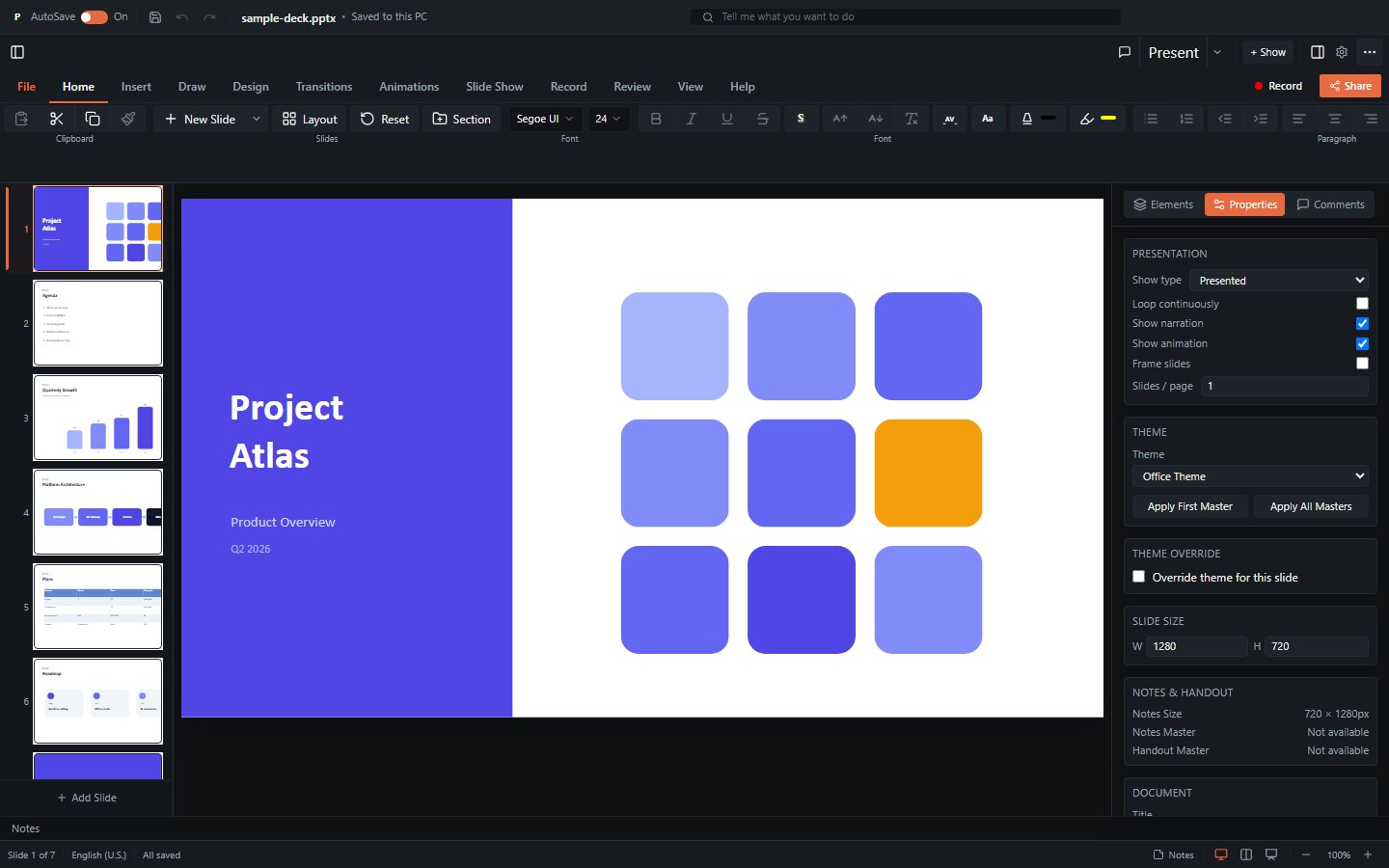
The PowerPointViewer component renders a deck from a Uint8Array and can run in editable mode. The onContentChange callback receives the re-serialized .pptx bytes whenever the presentation is edited.
import { useState } from 'react';
import { PowerPointViewer } from 'pptx-react-viewer/viewer';

function App() {
	const [content, setContent] = useState<Uint8Array>();

	if (!content) return null;

	return (
		<PowerPointViewer
			content={content}
			canEdit
			onContentChange={(bytes) => {
				// `bytes` is the updated .pptx as a Uint8Array
				setContent(bytes);
			}}
		/>
	);
}
TIP
See Component Props for the full, source-verified prop reference - the viewer takes Uint8Array content (not ArrayBuffer), and onContentChange delivers serialized bytes rather than a dirty flag.
Using Vue, Angular, Svelte, or no framework at all? See the Vue, Angular, Svelte, or Vanilla JS getting-started guides for the equivalent walkthrough in each binding.
Next steps
- Core package overview - the full handler, builder, and converter APIs.
- React package overview - viewer props, editing, presenting, and export.
- The PptxData Model - the shape of parsed presentations.
- The PptxData Model - EMU units, the element model, and theme resolution.