User Guide
This guide is for people using the pptx-viewer app to work with PowerPoint (.pptx) presentations in the browser. It covers viewing, editing, presenting, exporting, and collaborating. No coding is required.
If you are a developer integrating the viewer into your own application, see the React Viewer developer docs instead.
Features depend on how the app was set up
pptx-viewer is a configurable component, so the exact buttons and panels you see depend on how the developer who built your app turned features on. Editing is only available when the app enables it (a Read-only badge appears in the toolbar when it does not), and collaboration controls only appear when sharing is enabled. Where a feature is optional, this guide says so.
What the editor is
pptx-viewer opens PowerPoint files directly in your browser and renders each slide as real HTML and SVG, not a flat image. Text stays sharp at any zoom, can be selected and copied, and works with screen readers. In edit mode you can change slides and save the result back to a standard .pptx file.
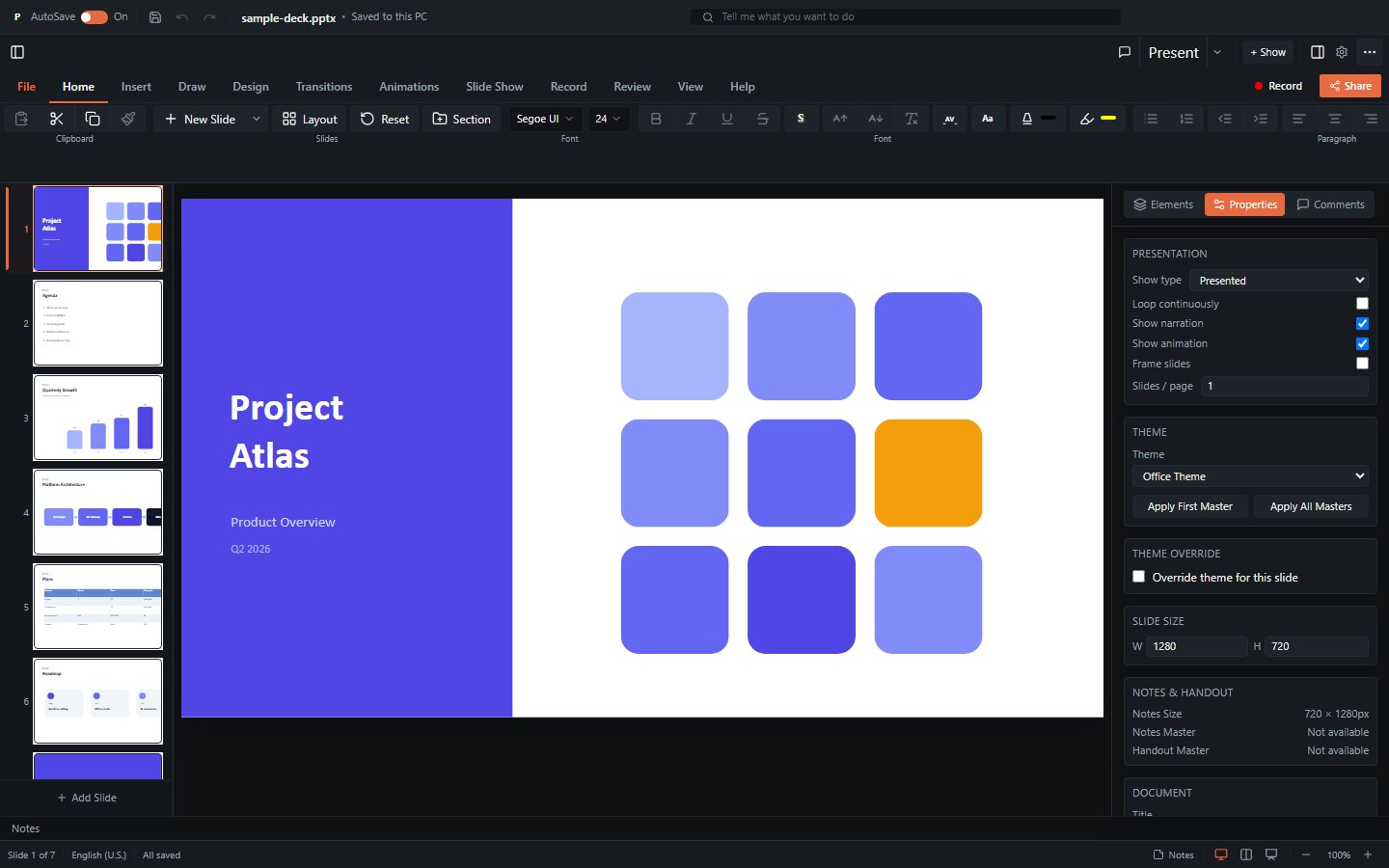
Opening a file
- Drag a
.pptxfile onto the drop area labelled "Drop a .pptx file here or click to browse", or click the area to open your system's file picker. - Wait a moment while the file is parsed. The first slide appears on the canvas with thumbnails on the left.
You can also click "or create a New Presentation" to start from a blank one-slide deck.
Your file stays on your machine
The file is processed entirely in the browser. Nothing is uploaded to a server: opening, editing, and saving all happen locally.
Supported files
The app opens .pptx and its relatives (.ppsx, .pptm, .potx), plus legacy binary .ppt from PowerPoint 97-2003, which is converted as it loads. Saving defaults to .pptx regardless of what you opened (a deck opened as report.ppt is offered back as report.pptx), but Save As also offers PowerPoint 97-2003 Presentation (.ppt) as an explicit format choice alongside .ppsx and .pptm; see Limitations for the remaining fidelity gaps on that format (hyperlink click-actions and elements with no binary equivalent).
Password-protected .pptx files open once you supply the password: a dialog titled Encrypted File asks for it. Password-protected .ppt files cannot be opened at all, because the old encryption scheme is not decrypted.
If the app finds unsaved work from a previous visit, a banner titled Unsaved changes recovered appears with Restore and Dismiss buttons. See Autosave and recovery.
A tour of the screen
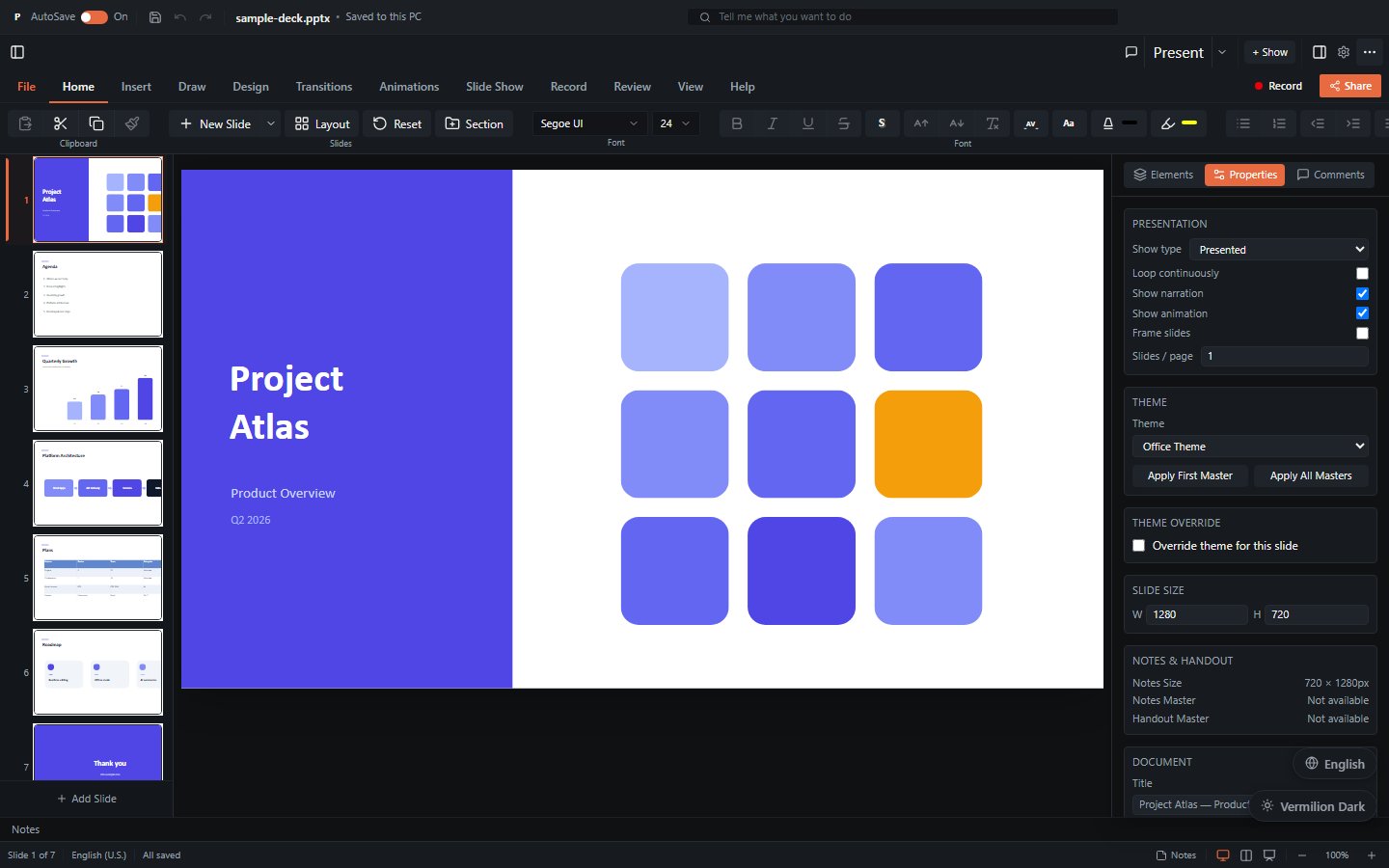
From top to bottom:
Title bar
The top strip shows the file name and its save state (for example "Saved to this PC" or "Unsaved changes"). When editing is enabled it also holds:
- The AutoSave switch (On/Off).
- Quick Save, Undo, and Redo buttons.
- A search box, "Tell me what you want to do". Type a command name (for example "table") to get a clickable list of matching actions, or press Enter to search for the text inside your slides.
Ribbon (toolbar)
A tabbed ribbon under the title bar. The tabs, in order:
File, Home, Insert, Draw, Design, Transitions, Animations, Slide Show, Record, Review, View, Help

- File opens a full-screen backstage with Open, Save, Save As, Print, Share, and Export pages. See Exporting.
- Home holds the everyday tools: clipboard, new slides and layouts, fonts, paragraph formatting, find and replace, drawing, and arrange controls. See Editing.
- Insert adds new elements: text boxes, shapes, images, media, tables, charts, SmartArt, equations, and more.
- Slide Show starts a presentation. See Presenting.
The ribbon appears only in edit mode. On the right end of the tab row sit the Record and Share buttons; the row above holds toggles for the slides panel, comments, and inspector, the Present button, a Settings gear, and a "..." overflow menu that repeats the export and utility actions.
Slides panel (left)
A scrollable strip of slide thumbnails.
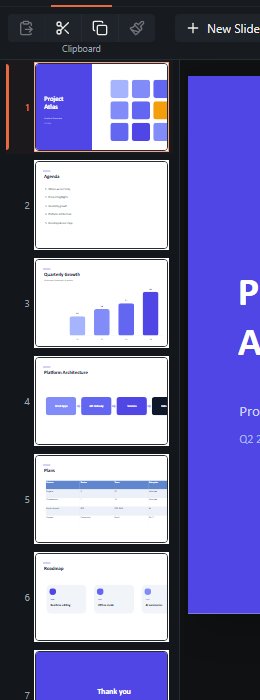
- Click a thumbnail to jump to that slide.
- Drag thumbnails to reorder (edit mode).
- Hidden slides appear dimmed with a diagonal hatch and an eye-off icon.
- The Add Slide button at the bottom inserts a new slide.
- Slides can be grouped into named sections with their own headers.
Slide canvas (centre)
The large area where the active slide renders. Here you zoom and pan, and in edit mode select, move, and edit elements directly. Rulers, a grid, and draggable guides can be switched on from the View tab.
Inspector (right)
A context-sensitive side panel with three tabs:
- Elements - a layer list of every element on the slide, in stacking order. Click a row to select that element on the canvas.
- Properties - settings for the current selection. With nothing selected it shows presentation, theme, slide size, slide transition, and background settings; with an element selected it shows position and size plus panels specific to the element type (text, fill and stroke, table, chart data, image, media, and so on), and an Animation panel.
- Comments - the comment threads attached to the current slide, with reply and resolve controls.
Toggle the inspector with the panel button in the toolbar's top row.
Notes panel (below the canvas)
An editor for the current slide's speaker notes. Toggle it with the Notes button in the status bar.
Status bar (bottom)
From left to right:
- Slide x of y counter.
- The save status: Unsaved changes, All saved, Saving..., or Saved [time].
- The Notes toggle.
- Three view buttons: Normal view, Slide sorter, Slide show.
- The connection indicator when a collaboration session is active.
- Zoom controls: Zoom out, a percentage button that also acts as Zoom to fit, and Zoom in.
Desktop and mobile
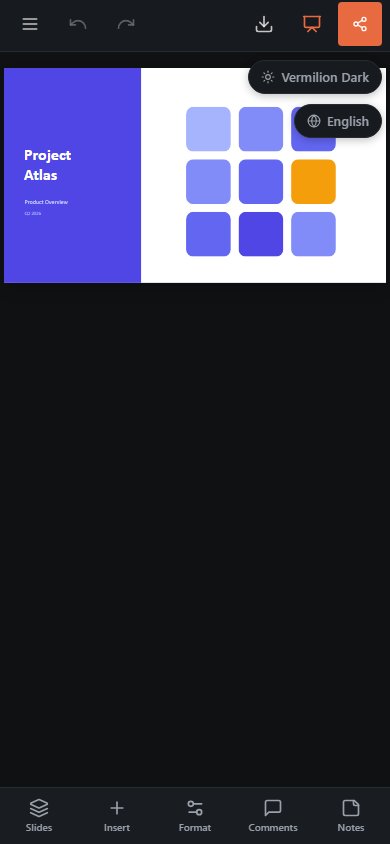
Designed for desktop
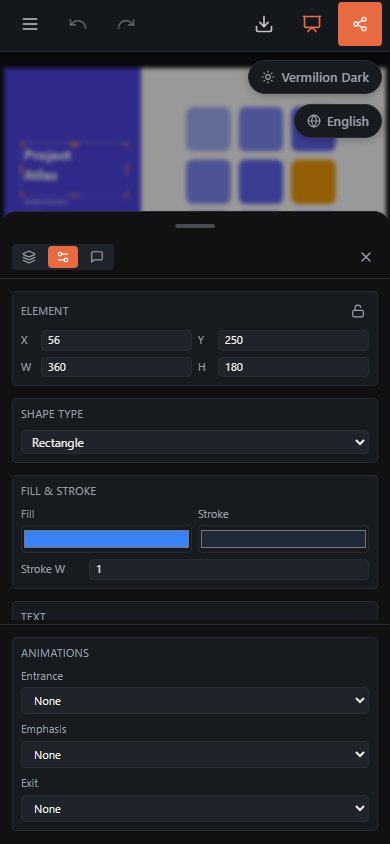
The ribbon, inspector, and dialogs are designed for desktop-sized screens. On a phone or small tablet the app switches to a compact toolbar and bottom sheets, and supports touch gestures (drag, pinch-to-zoom), but serious editing is easier on a larger screen.
Where to go next
- Viewing Presentations - navigate slides, zoom, hidden slides, and reading notes.
- Editing Slides - select and format elements, insert content, manage slides, undo, and autosave.
- Presenting - run a slideshow, presenter view, and live annotations.
- Exporting - save back to
.pptx, export PDF, images, GIF, and video, and print. - Collaboration - co-edit in real time and broadcast a show.
- Keyboard Shortcuts - the complete shortcut reference.