
Desktop app field guide
The desktop app is the full Abiotic Editor workbench for Windows, Linux, and Steam Deck. It finds local saves, opens in its own window, and gives you the widest set of repair and organisation tools. Your saves stay on your machine.
Work offline first
For normal save editing, close Abiotic Factor or stop the server. Changes wait safely in the editor until you choose SAVE, and every written file receives a nearby backup copy. Choose REVERT to throw away changes you have not saved.
1. Load the expedition
Start the app. The welcome screen lists save folders it finds. Choose OPEN beside the world you want, use OPEN FOLDER to pick one yourself, or drag a folder onto the window.
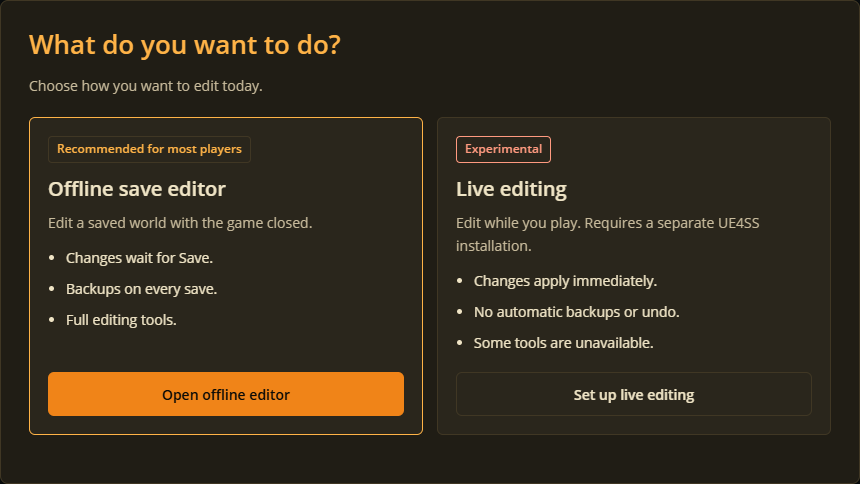
Choose Open offline editor to work on save files.
The sidebar sorts what it found into story progress, players, world regions, and server settings. Use its search box when a big world has become a maze. Right-click a row to reveal its file in your file manager.
Choose the account folder above Worlds when you can. That also loads character appearance presets, which are shared between your worlds.
2. Tune up a player
Open a player from the sidebar. Each tab is a station on your survivor's workbench.
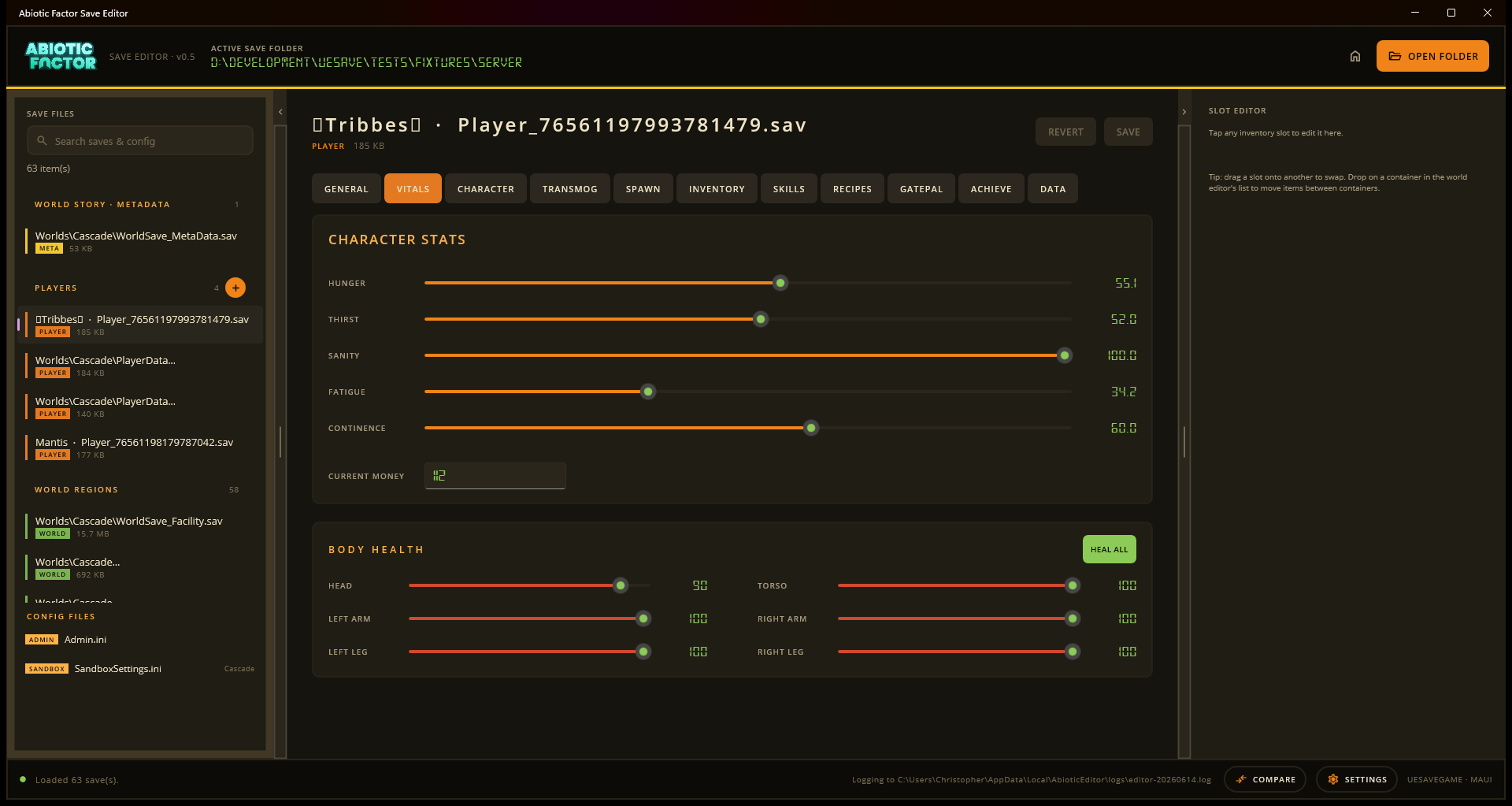
| Station | What you can do |
|---|---|
| Vitals | Top up hunger, thirst, sanity, fatigue, continence, body health, and money. HEAL ALL restores body health in one go. |
| Inventory | Inspect pockets, equipment, hotbar, backpack, and deployed backpack storage. Change an item, quantity, or durability, swap slots, and use the searchable item catalogue. |
| Skills | Adjust level or exact XP, use MAX on one skill, or MAX ALL. |
| Recipes | Search your crafting book, unlock or hide individual recipes, or use UNLOCK ALL. Unlocking or hiding a recipe keeps the in-game "NEW" highlight in sync automatically, and an Awaiting research list lets you queue (or drop) recipes that still need a trip to the research bench. |
| Character | Set background, add or remove traits, change saved hair, clothing and other appearance choices, and tick whether the character has already sat through the opening cinematic. |
| GatePal | Review e-mail, notes, compendium entries, and fish records. Marking something as read or caught keeps its in-game "NEW" highlight in sync too. |
| Transmog and Spawn | Adjust appearance overrides, respawn information, and teleporter-pad tags. An advanced section on Spawn also holds the last saved camera angle, for the rare case you need to nudge it. |
| Achievements | View the Steam information the editor can read locally. |
| General and Data | Change a player SteamID or inspect information that does not yet have a friendly control. |
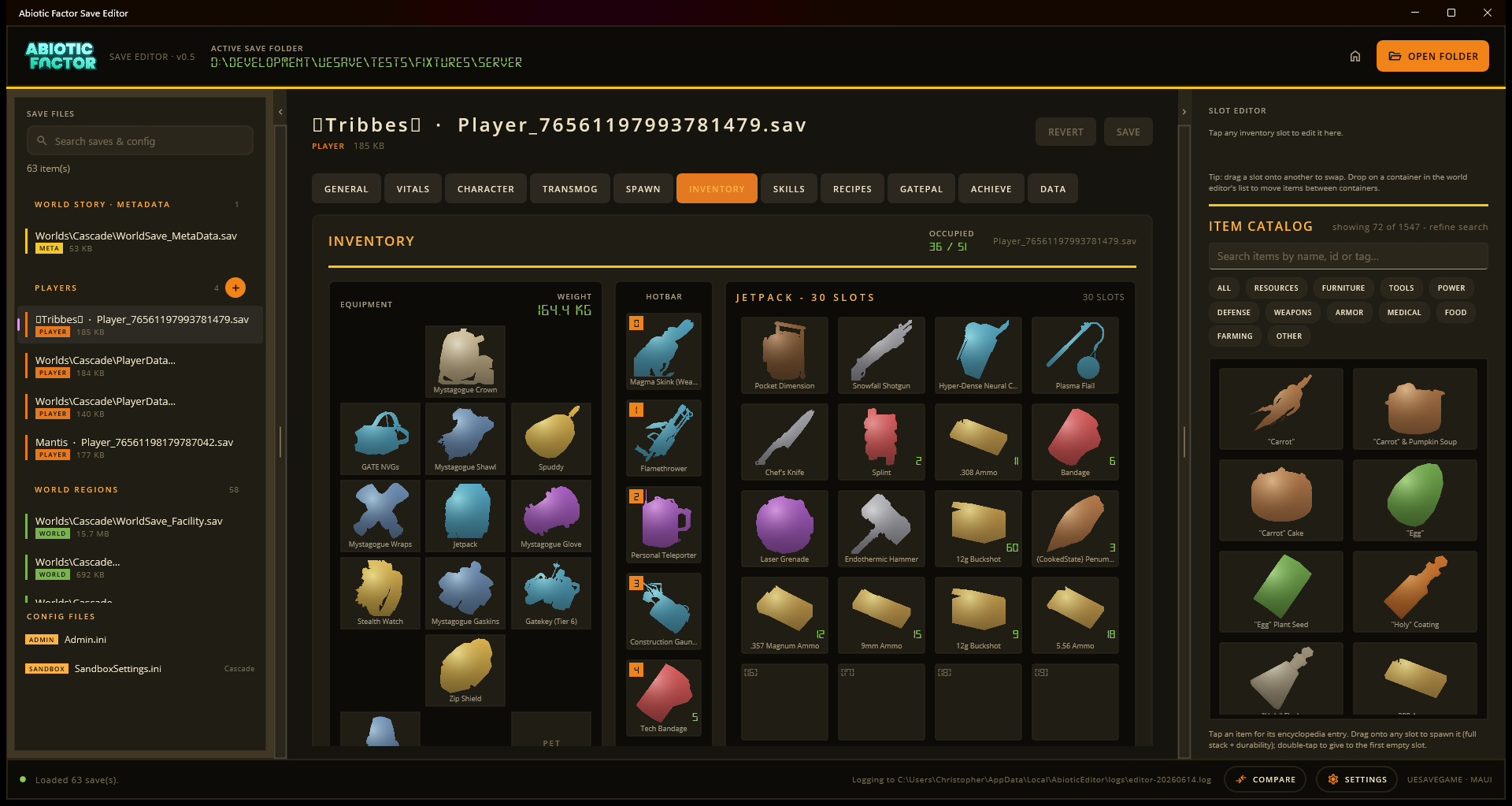
Selecting an item shows a collapsible Stats block with the same numbers the wiki publishes: weapon damage, armor and resistances, hunger/thirst/buffs for food, and what it repairs or salvages into. It only lists the groups that item actually has.
Moving a player to a different Steam account
Use General when you need to re-home a player save. The editor updates the player save and matching bed claims together, with backups. This is for deliberate migration, not an ordinary inventory transfer.
Edit a world
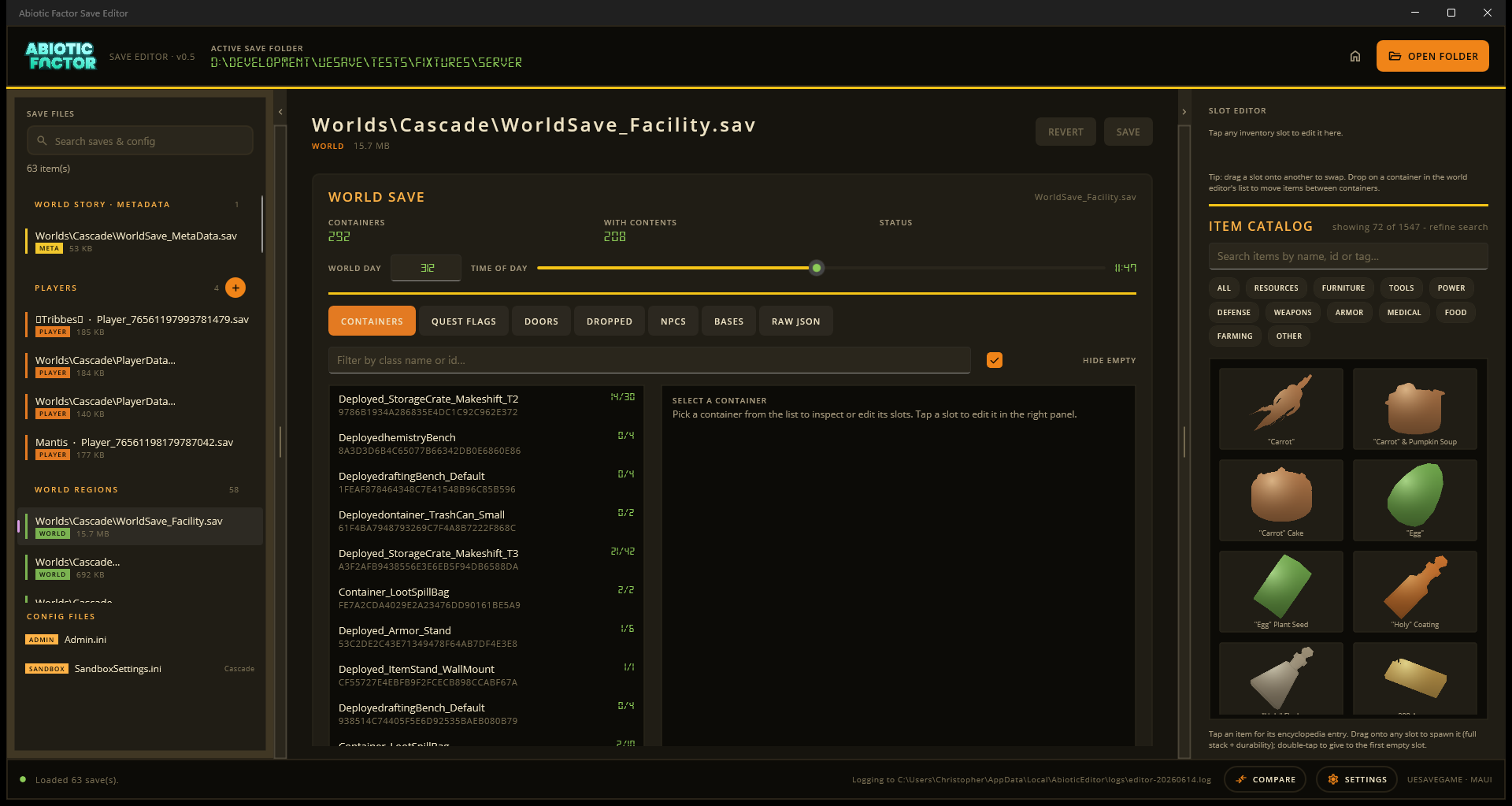
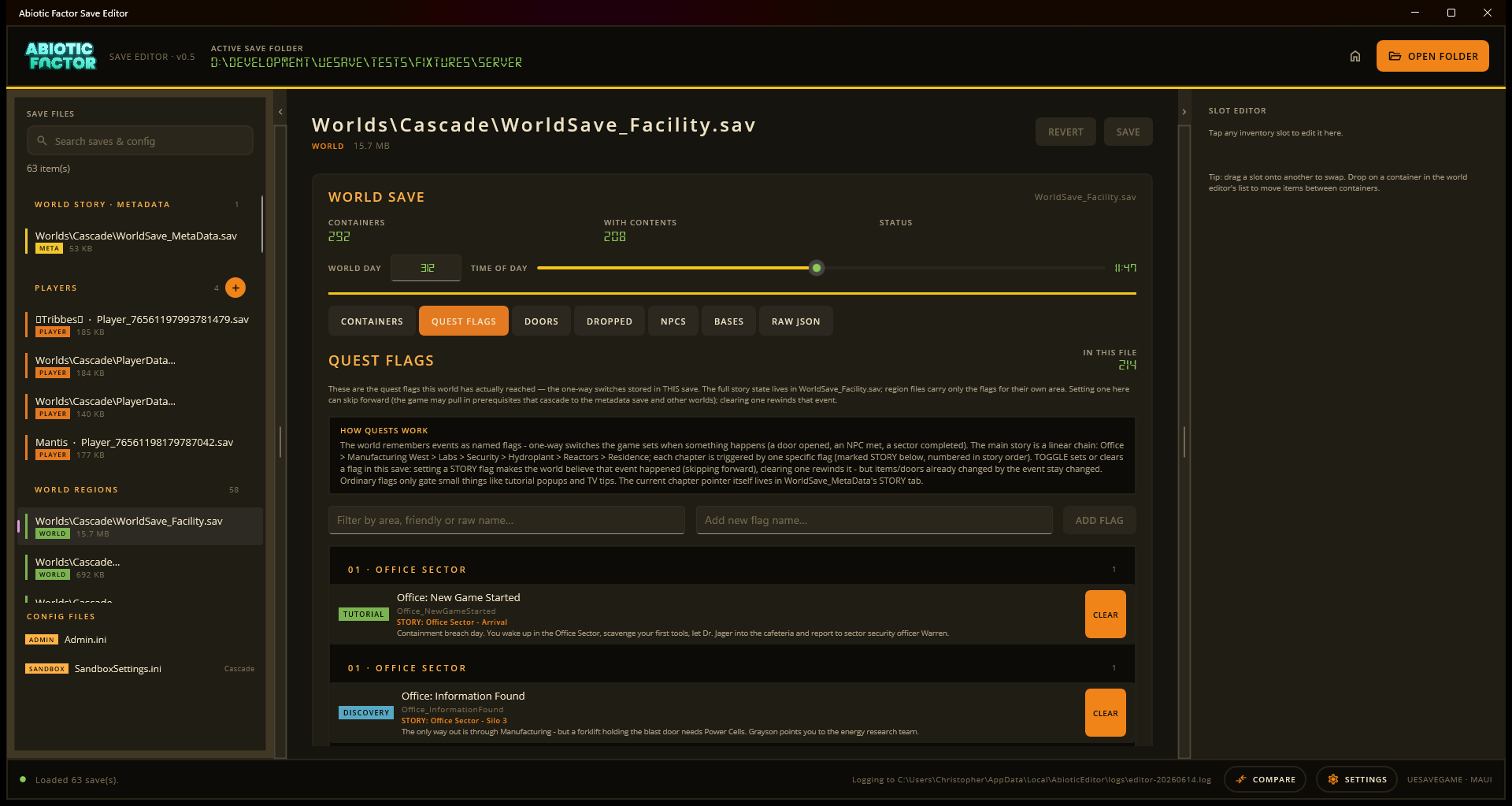
Open a region such as WorldSave_Facility.sav to work on that part of the facility. The header shows the world day and time. Most places you build, loot, or repair live in a region save.
| Station | What you can do |
|---|---|
| Containers | Restock or clean out storage, using the same slot tools as a player inventory. |
| Quest flags | Review story switches by chapter. When a choice needs earlier story steps, the editor offers to add them too. |
| NPCs and pets | Revive a story character, rename a pet, or change a narrative state. |
| Doors and dropped items | Open or lock doors, and edit items left on the ground. |
| Bases and world maps | Work with player-built structures, elevators, buttons, sockets, teleporter pads, vehicles, and other saved world state. |
| Resource nodes | Refill harvestables and restore breakable glass panes. |
| Raw JSON | Inspect advanced world information when a normal tab does not cover it. |
Refill a harvestable or restore a window
Open the region that contains it, then choose Resource Nodes. Search for the friendly name, select the result, and turn Harvested off to make it available again. For damaged office windows, search for Glass Pane in the relevant Office region. Leave Day Picked Up alone unless you specifically want to change the normal respawn timing.
Move loot to another world
From Containers, choose Move items to a different world save. The transfer station opens two saves side by side and stages the move on both. Save both sides before playing. The full walkthrough is Transfer items.
4. Adjust a dedicated server
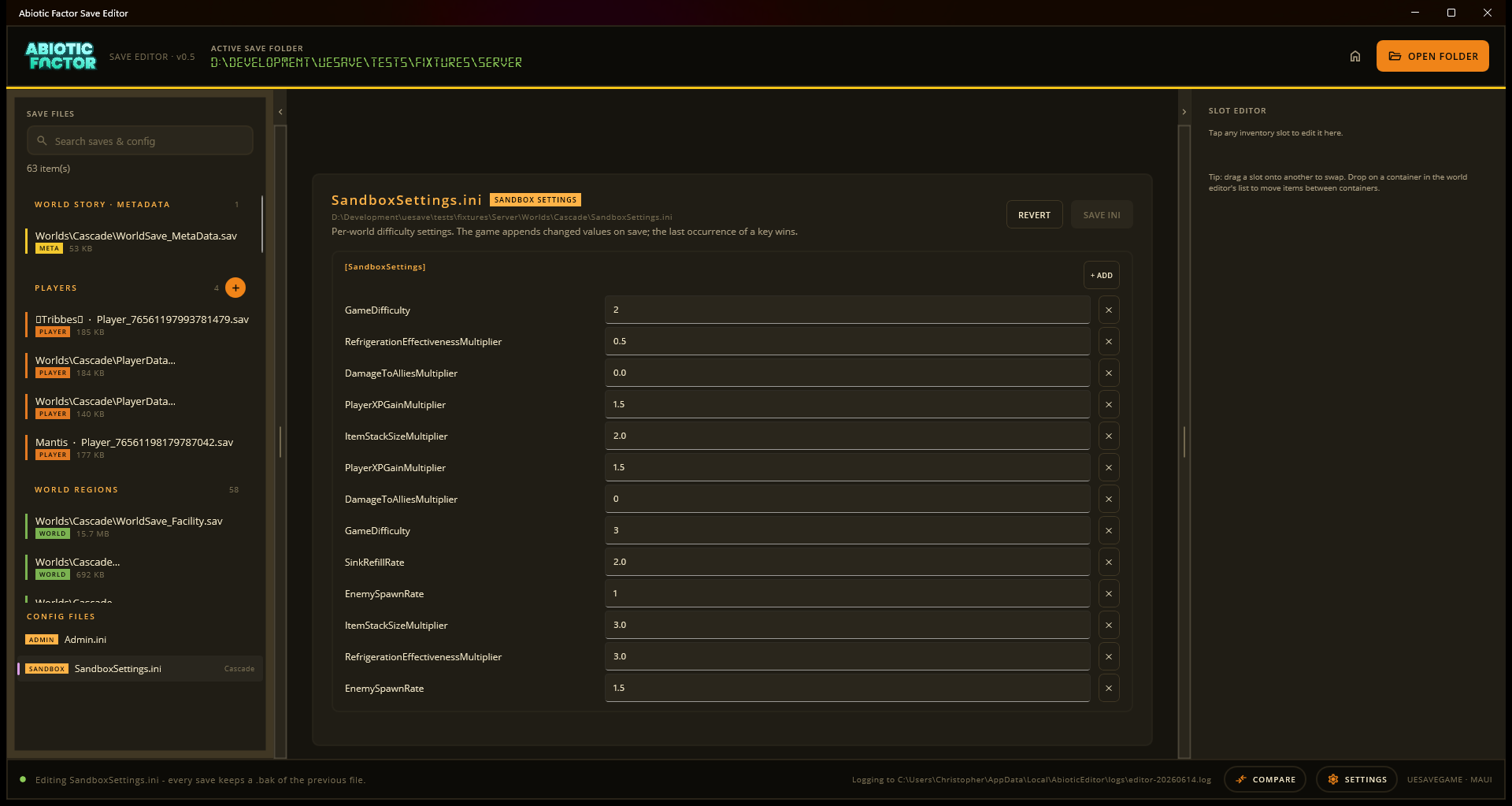
When you open a dedicated-server folder, the sidebar also shows Config Files. Select Admin.ini or a world's SandboxSettings.ini to adjust difficulty, XP, stacking, spawn, and refill settings. Choose SAVE INI when ready. These files receive backup copies too. If a setting is repeated in the file (the game appends rather than rewrites), the game uses the last occurrence, and saving here updates that same last occurrence so your change actually takes effect.
5. Set up the workbench
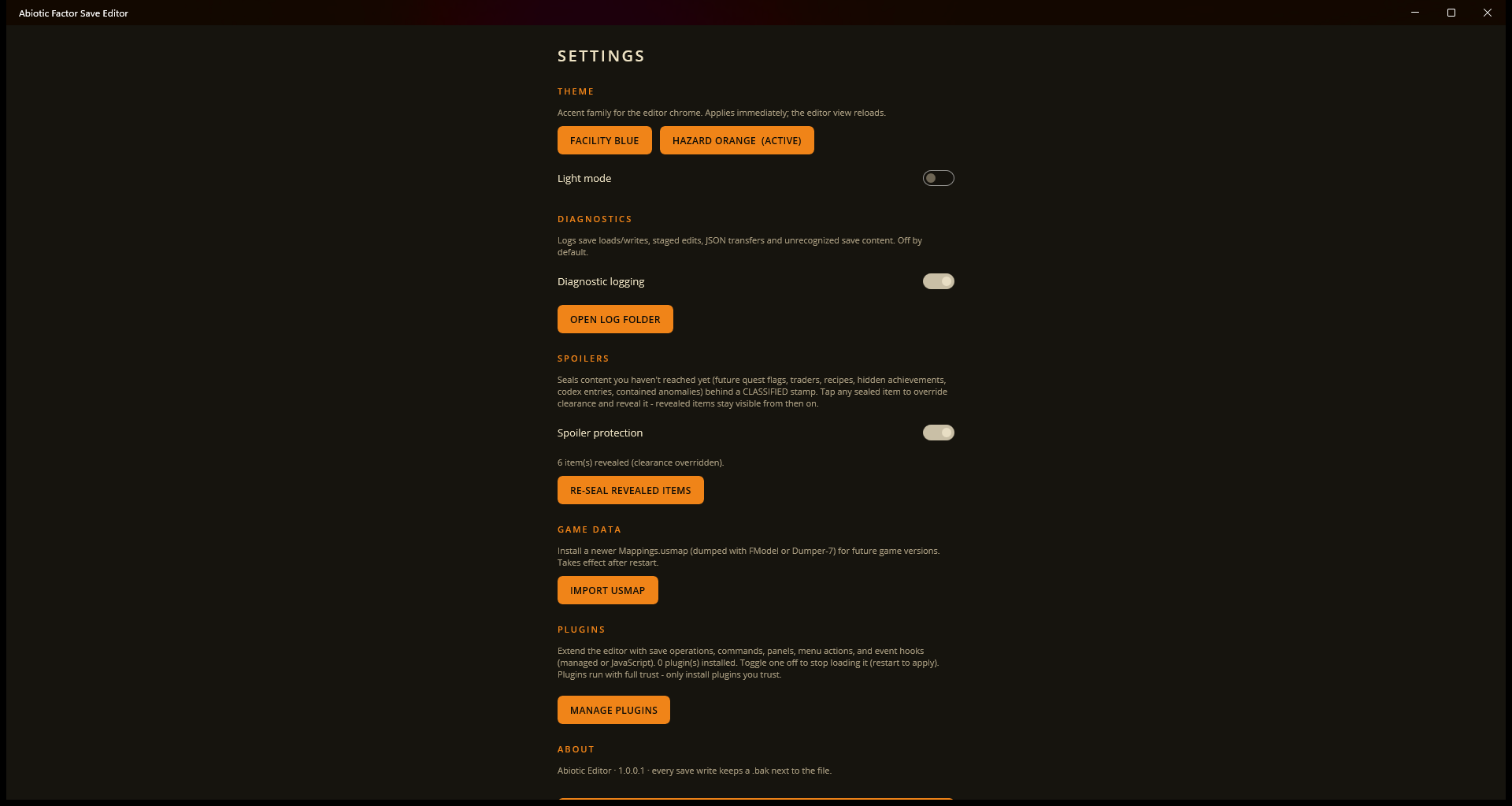
Open Settings in the bottom-right corner.
- Theme switches between Facility Blue, Hazard Orange, and GATE Teal, with a light-mode choice. GATE Teal takes its aqua colors from the game's inventory screens.
- Spoiler protection stamps unreached traders, recipes, flags, achievements, and codex entries as CLASSIFIED until you choose to reveal them.
- Game data lets you refresh game mappings after a major game update. See Game data if a new item has no familiar name or icon.
- Plugins manages community additions and language packs.
- Updates checks for a newer editor release and installs the matching package.
- Diagnostics records extra detail when you need to report a problem.
Compare two saves
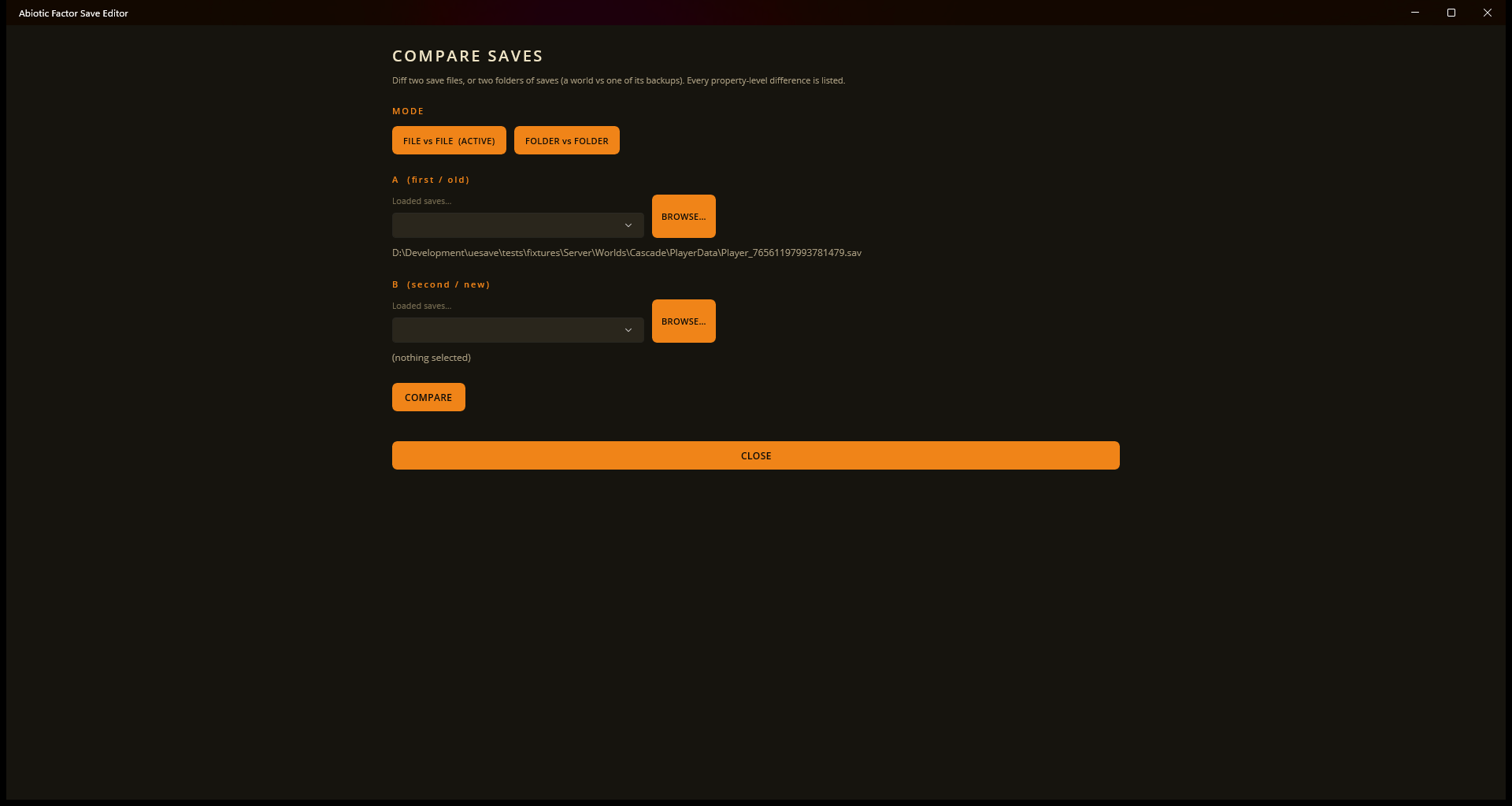
Use the Compare sheet to see what changed between two saves or between a world and a backup. It filters out ordinary background noise and calls out meaningful differences such as items, recipes, traits, fish, and quest flags.
Reference pictures from the wiki
Some screens, including fish, vehicles, doors, and world features, can show a helpful picture from the Abiotic Factor Wiki. The editor uses the current wiki picture when it can, and uses its included copy when you are offline. Missing pictures do not affect your save or the rest of the editor.
Live editing
The desktop app can also connect to a running game on Windows, and on Linux for a copy running through Steam Play (Proton). Live edits apply while you play, have fewer tools, and do not receive editor backups. Treat it as an experiment and make your own world backup first. Read the live editing guide before setting it up.
Reporting a bug
A clear report gives a broken tool its best chance of being fixed.
- Open Settings, then Diagnostics, and turn on diagnostic logging.
- Repeat the problem if you can.
- Choose OPEN LOG FOLDER. Attach the newest log file.
- Include what you were doing, whether your save is Steam or Game Pass, and the editor version shown in Settings, then Updates.
Crashes and write failures are recorded even when diagnostic logging was off. Report the issue on GitHub Issues or in the POSTS tab on Nexus Mods.