
Game data: names, pictures and 3D models
The editor carries its own list of item names, recipes, skills, story flags and other game information, so you can edit a save even when Abiotic Factor is not installed.
When the game is installed, the desktop app also reads it directly. That gives you:
- names and item pictures that match your game version, in your game's language;
- the game's own models in the 3D view, and the top-down level picture on the Bases map;
- trader stock, pet foods, garden crops, coatings and sandbox options from the game's own tables.
Nothing from the game is in the editor download: all of this is read from your copy, on your computer. The browser editor uses the list packed into its release, and draws boxes in the 3D view.
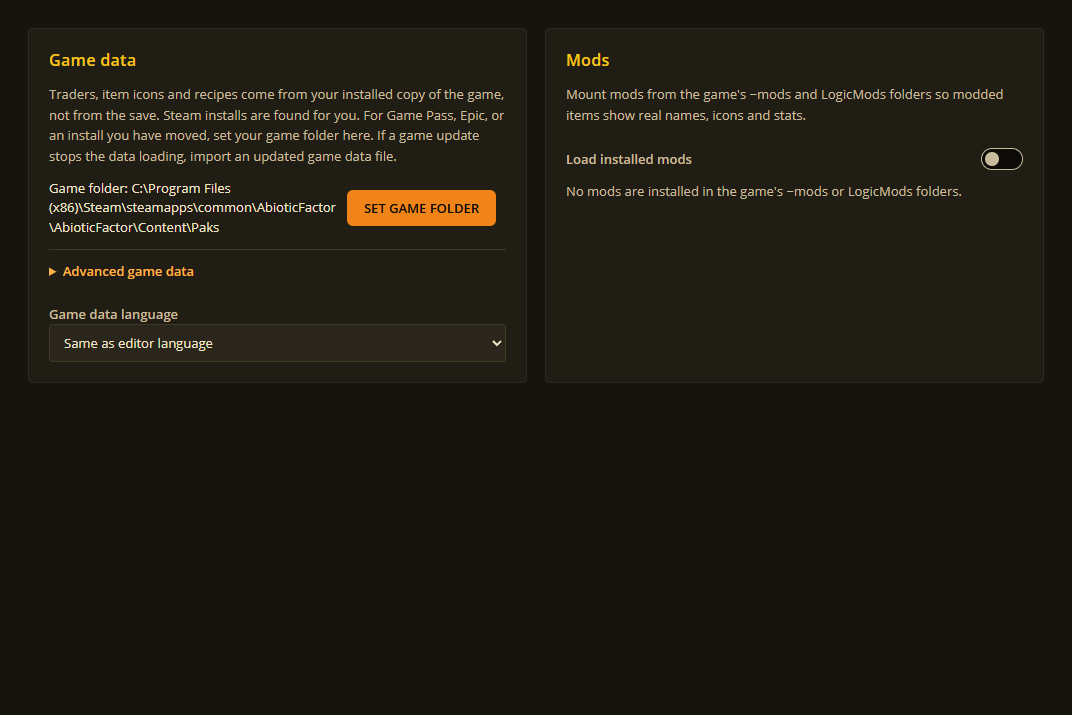
Settings ▸ Game data shows which game folder is in use.
If the editor cannot find your game
It normally finds Steam and Game Pass installs by itself. If it does not, open Settings ▸ Game data, choose SET GAME FOLDER and select the Abiotic Factor installation folder (not your saves folder). USE AUTO-DETECT goes back to finding it automatically.
Without the game, missing pictures use a plain fallback and the 3D view is not offered. Your saves still open and edit normally.
Mods
The desktop app reads mods you downloaded from mod.io in the game, and mods in the game's ~mods and LogicMods folders. Modded items, recipes, traits and PhDs then show their real names and pictures, and modded furniture keeps its power, storage and upgrade details in the base tools.
By default the editor loads the same mod.io mods the game has switched on. Settings ▸ Game data ▸ Mods lets you turn single mods on or off for the editor. These switches never change the game.
When you open a world (or a player in it) that was played with mods you have switched off in the editor, it asks whether to switch them on. SWITCH ON turns on mod loading and those mods, and leaves your other mods as they were. Not now keeps things as they are, and the editor does not ask again about that world until you restart it.
The world (and each player in it) also shows a Mods in this world box listing them:
- loaded: the editor knows everything the mod adds.
- installed, but switched off in Settings: press USE THIS WORLD'S MODS to load exactly this world's mods.
- still downloading in the game or not on this PC: start Abiotic Factor and load the world once, and the game downloads them. The editor picks them up the next time you open the world.
Things from a mod the editor has not loaded show as unknown. They are kept exactly as they are when you save, so nothing is lost.
After a game update
Update the editor too. A new game patch can add things an older editor does not know yet. The start page will also offer to get the 3D view ready again, because the game's files have changed.
The game data out of date notice
If a red Game data may be out of date notice appears across the top of the editor, the editor found your game but could not read its data tables. That almost always means the game has updated since your version of the editor was released. Item, recipe and quest lists may then be empty or incomplete, and item pictures may be missing.
Your saves are not affected. The editor's built-in names still work, and you can keep editing. If a save is from a game version the editor cannot read yet, it opens read-only and tells you so, rather than risk damaging it.
To get rid of the notice:
- Install the latest editor update as soon as it is out. This is the normal fix.. Or, while you wait, load a mappings file made for your game version. Choose SETTINGS, then Game data, open Advanced game data and press IMPORT DATA FILE. See The usmap below.
The notice goes away by itself once the editor can read your game again. Open Settings on the notice takes you straight there.
The usmap (matching the game build)
This is an advanced step most players never need. If the out of date notice stays after updating the editor, or names or pictures still look incomplete, you can give it a Mappings.usmap file that matches your game build.
Make one with Dumper-7, FModel or the usmap dumper that comes with UE4SS, then either:
- Choose Settings ▸ Game data ▸ IMPORT DATA FILE, or
- Copy it to
%LOCALAPPDATA%\AbioticEditor\mappings\Mappings.usmap.
It takes effect straight away. When a later editor update brings a newer file of its own, the newer one is used, so an old import never holds you back.
Unknown entry?
Do not guess at unfamiliar values from a newer patch. Update the editor first, then review the value before saving.