Presenting
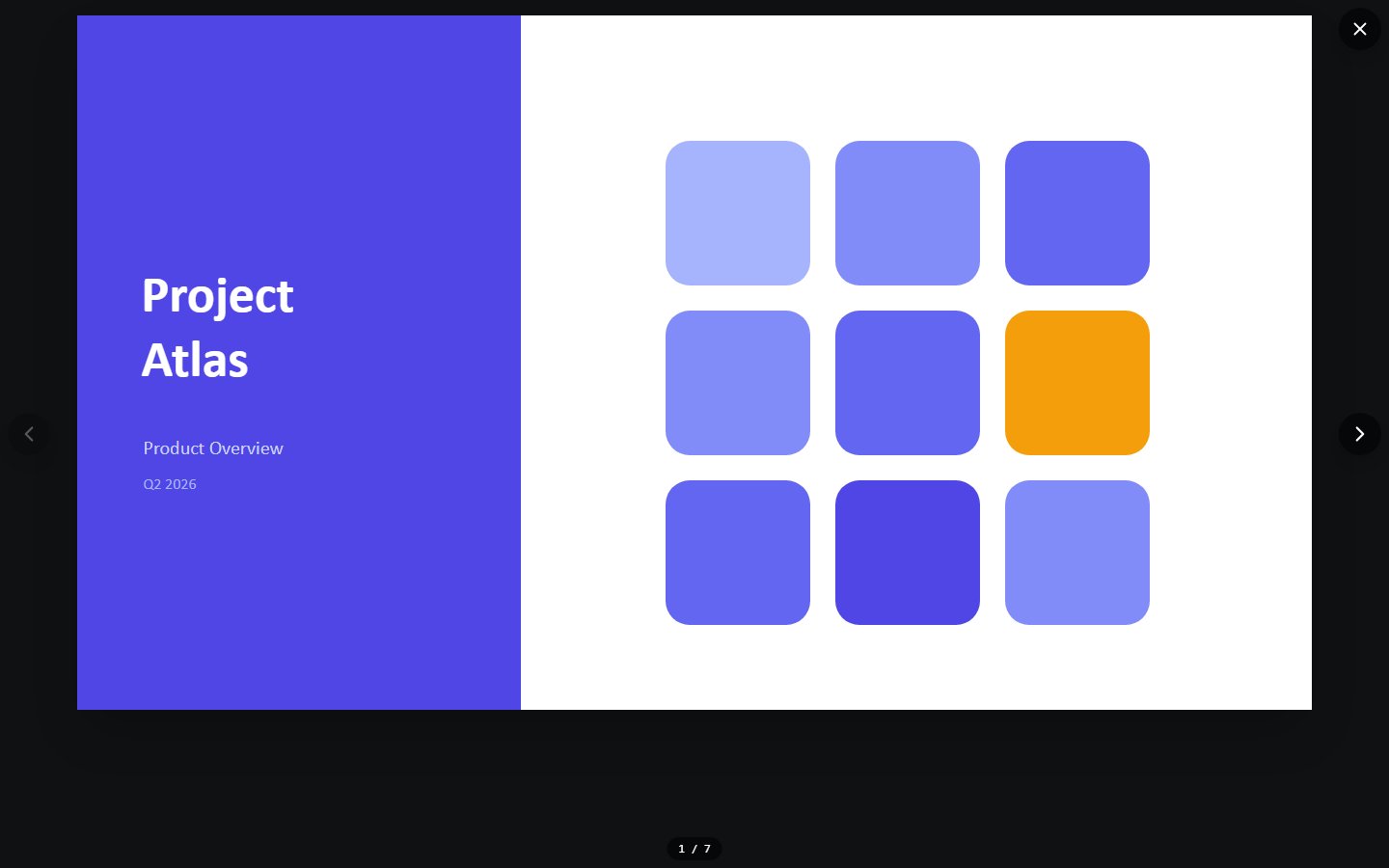
Presentation mode turns the viewer into a fullscreen slideshow that plays your transitions and animations, with a presenter view, timers, and live annotation tools.
Starting a slideshow
From the Slide Show tab:
- Click From Beginning to start at slide 1, or From Current Slide to start where you are.
- The slide expands to fill the screen and the editing chrome disappears.
You can also click the Present button in the toolbar's top row, or the Slide show button in the status bar. The arrow next to Present opens a menu with Presenter View, Rehearse Timings, Set Up Slide Show, Present Online, and a Subtitles toggle.
Set Up Slide Show controls playback options such as Use Timings (auto-advance using saved slide timings) and looping the show until you press Escape.
Controlling the show
| To... | Do this |
|---|---|
| Next slide / next animation step | Click, or press Right Arrow, Page Down, Spacebar, Enter, or N |
| Previous slide | Press Left Arrow, Page Up, Backspace, or P |
| Jump to a specific slide | Type its number, then press Enter |
| First / last slide | Press Home / End |
| Black out the screen | Press B (press again to resume) |
| White out the screen | Press W (press again to resume) |
| Toggle presenter view | Use the Presenter View toolbar button (no keyboard shortcut) |
| Show or hide the slideshow toolbar | Press Ctrl+H |
| Show all slides | Press Ctrl+S |
| End the show | Press Escape |
The slideshow toolbar
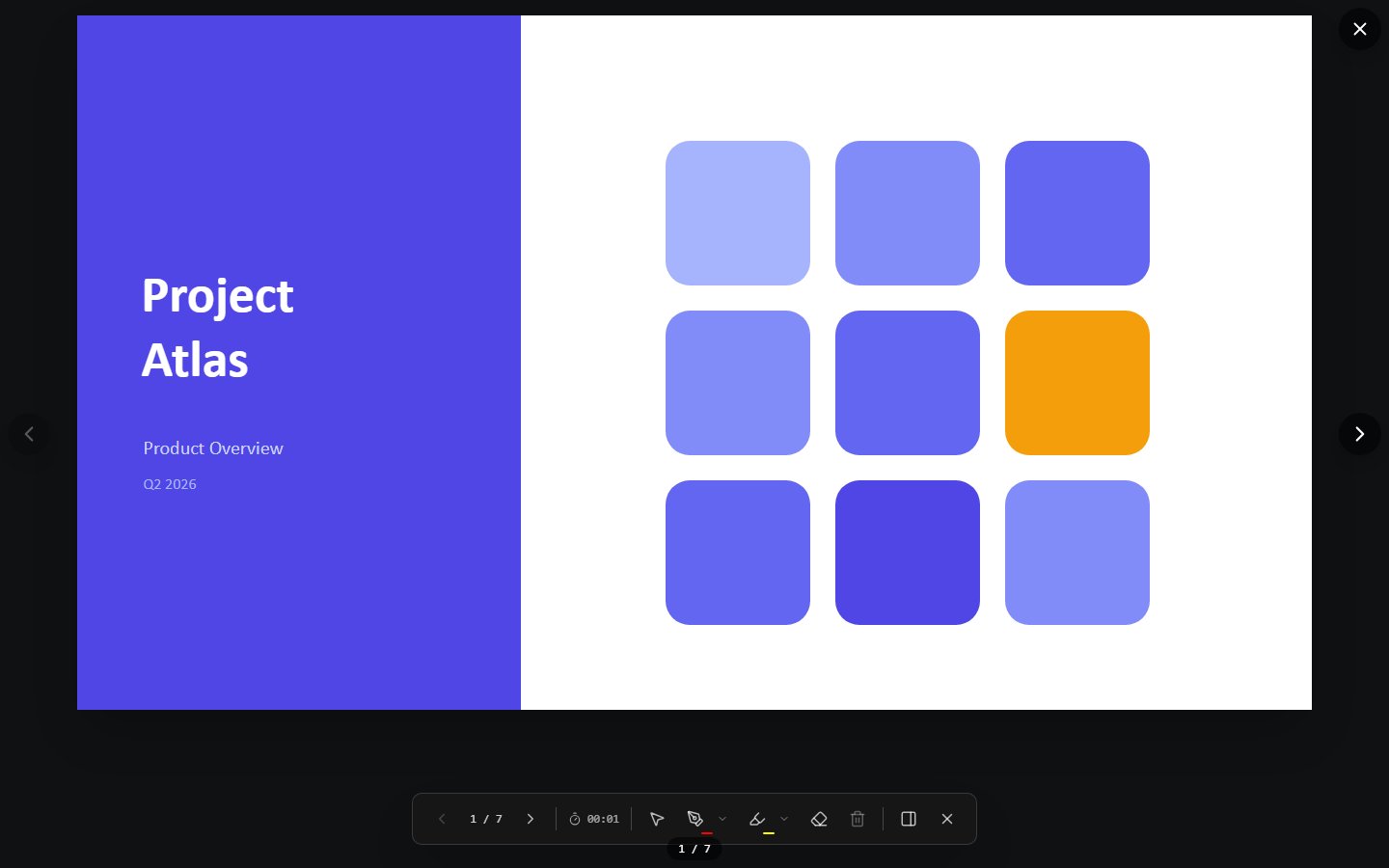
A floating toolbar sits at the bottom of the screen with, from left to right: Previous Slide, a slide counter (for example 3 / 12), Next Slide, an elapsed timer, Laser Pointer, Pen, Highlighter, Eraser, Clear Annotations, Presenter View, and End Presentation.
Auto-hide
The toolbar fades out after about 3 seconds without mouse movement. Move the mouse (especially toward the bottom of the screen) to bring it back, or press Ctrl+M to pin it on or off.
Transitions and animations
When you move forward between slides, the transition assigned to the incoming slide plays: fades, pushes, wipes, reveals, morphs, and more. Moving backward is instant.

Animations play according to their triggers:
- On click - each click or advance key plays the next animation step; the slide only changes once all steps have played.
- With previous / After previous - these steps chain automatically after the one before them.
Slides with saved timings advance automatically when Use Timings is enabled in Set Up Slide Show. Elements with hover or click triggers (including action buttons and hyperlinks) respond during the show.
Fidelity notes
Transitions and animations are approximations of PowerPoint's behaviour. Morph interpolates position, size, opacity, rotation, and colour of matching elements, and also morphs between different shape geometries: when a matched element changes shape type (or its adjustment-driven outline) between the two slides, its outline is resolved to a polygon and interpolated vertex-by-vertex into the target shape's outline, rather than crossfading. See Limitations for other transition and animation approximations.
Unmatched elements crossfade, matching PowerPoint. Elements are paired across the two slides by explicit !! naming, a16:creationId / native shape-id identity, and same-type proximity; a plain Selection Pane name with no !! prefix is not a pairing signal PowerPoint's own Morph honours either, so renaming two shapes to the same name does not make them morph. An element with no counterpart on the next slide crossfades out instead of morphing. Confirmed against real PowerPoint 2016 (COM CreateVideo, 30 fps, a two-slide deck with an unmatched element on slide 1 only): the element holds at full opacity through the last frame of slide 1's dwell time, then fades smoothly to the background over 10 frames (roughly 0.45s of the 2s authored transition), landing fully transparent, rather than cutting out in a single frame.
Presenter view
Presenter view shows you information the audience does not see:
- The current slide (with your annotation tools still available).
- A Next Slide preview.
- Speaker Notes, with font size controls; you can edit the notes right there.
- The current time, an elapsed timer with pause and reset, and a progress bar.
Toggle presenter view with the Presenter View button on the slideshow toolbar, or from Slide Show > Presenter View in the ribbon. There is no keyboard shortcut for it: N is PowerPoint's "next slide" key.
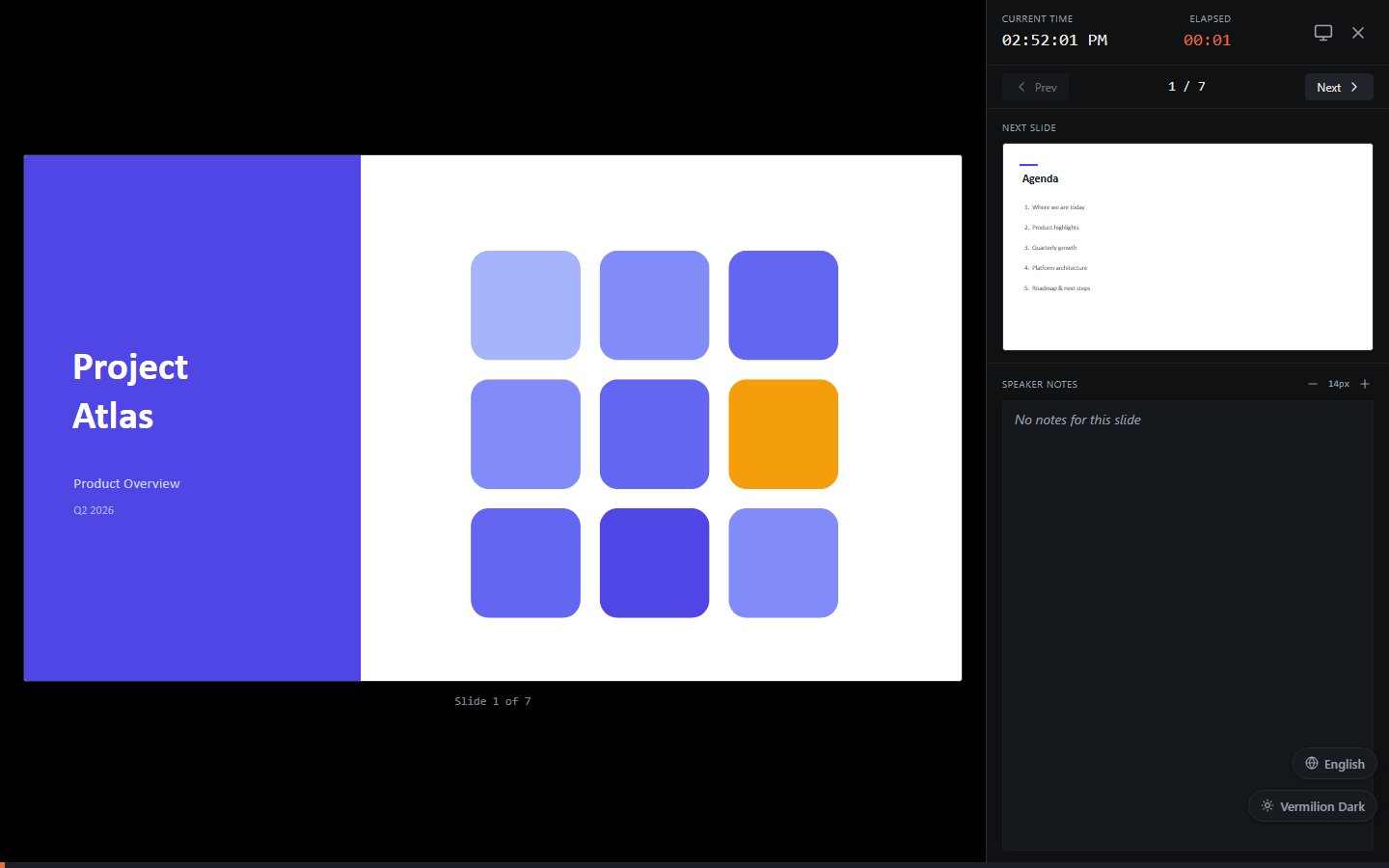
The presenter console's top toolbar also offers: pause/reset timer, a Slides grid to jump to any slide, zoom controls, the pointer tools, B / W blackout buttons, a subtitles toggle, and an Audience display button that opens the show in a second window; use Swap to switch which screen shows what, so your audience sees only the slides while you keep the console.
Annotating live
Draw on slides while presenting to emphasise points:
| Tool | What it does | Shortcut |
|---|---|---|
| Arrow | The normal pointer; leaves no marks. | Ctrl+A |
| Laser Pointer | A glowing dot that follows your cursor; leaves no marks. | Ctrl+L |
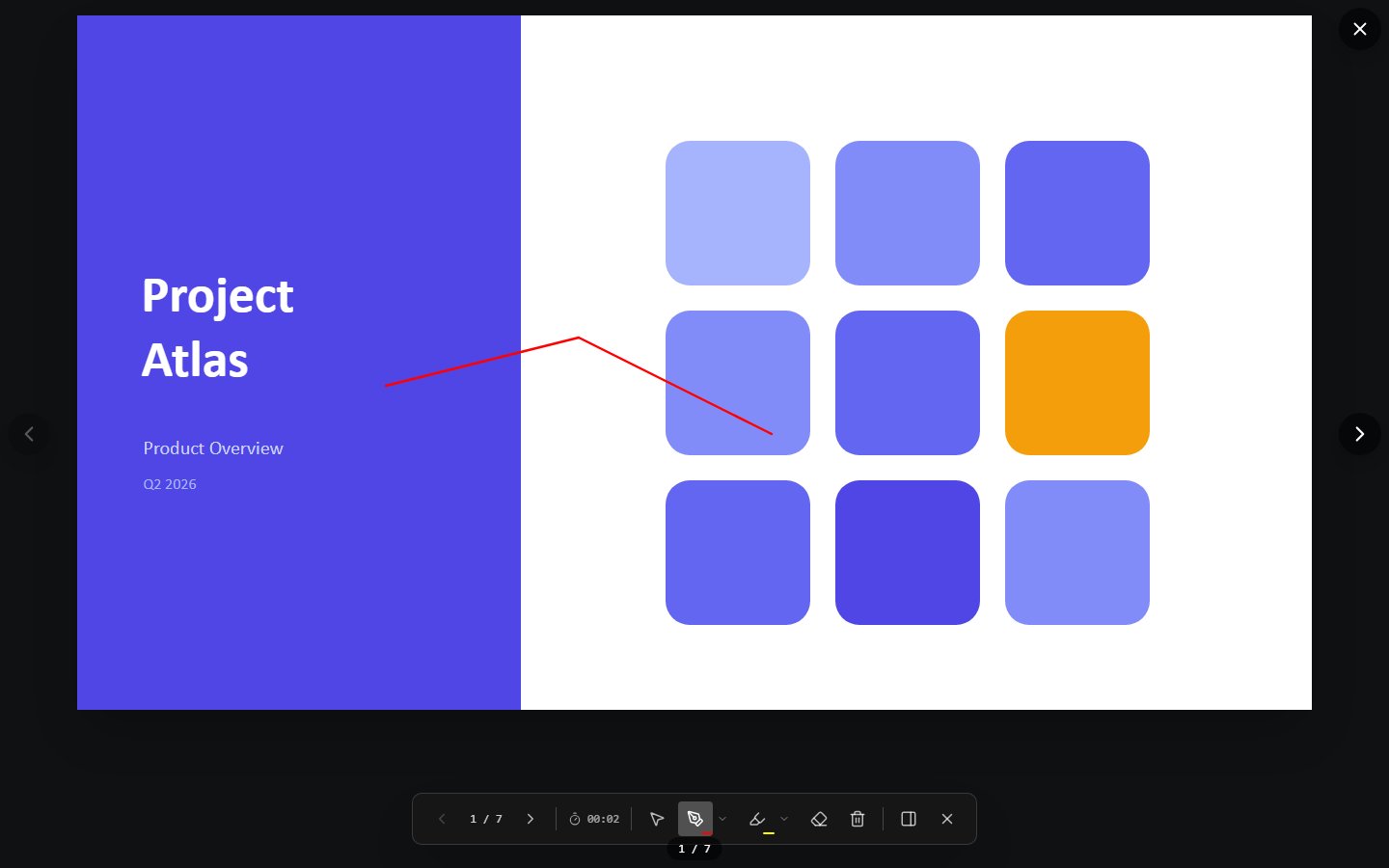
| Pen | Freehand ink in the colour of your choice. | Ctrl+P |
| Highlighter | Translucent highlight strokes. | (toolbar only) |
| Eraser | Removes individual ink strokes. | Ctrl+E |
| Clear Annotations | Removes all ink on the current slide. | E |
| Show / hide ink | Hides the ink without deleting it. | Ctrl+M |
Why the tools are Ctrl chords
PowerPoint reserves the bare letters for navigation and screen commands (N next, P previous, B black, W white, E erase all), so the annotation tools take the Ctrl chord. This viewer follows the same split.
To change colour, right-click the pen or highlighter button (or click the small arrow next to it) and pick from the swatch grid. Picking a colour also activates that tool.

Annotations are kept per slide: move to another slide and back, and your ink is still there.
When you end a show that has ink on it, a Keep Annotations? dialog asks whether to keep the drawings (they become ink elements on the slides) or discard them.
Rehearsing with timings
- Click Slide Show > Rehearse Timings. The show starts with a small timer panel showing Slide Time and Total Time; a Pause button stops the clock while you take a break.
- Practise your talk, advancing as you normally would. The time you spend on each slide is recorded.
- Press Escape (or advance past the last slide). A Rehearsal Timings summary lists every slide with its time and your total.
- Click Save Timings to store the per-slide times (used for automatic advance when Use Timings is on), or Discard.
Presenting to remote viewers
Slide Show > Broadcast (also Present Online in the Present menu) starts a one-way session where viewers follow your slides live from a link. See Collaboration.
Exiting
Press Escape or click the X on the slideshow toolbar. If you have annotations, the keep-or-discard dialog appears; if you were rehearsing, the timing summary appears.
Next
- Save a handout or recording of your deck: Exporting
- Full key list: Keyboard Shortcuts