Skip to content

Coatings, garden care and game settings

These additions come from the UI review. They use the installed game's tables and blueprint save behavior. Close the game before editing offline saves, then save in the editor and reopen the world. The editor keeps its usual backup.

Weapon coatings

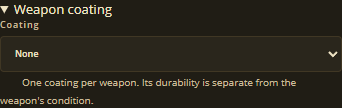
Open a player inventory or a world container, select a compatible weapon, and expand Weapon coating in the slot editor. Choose a coating and adjust its remaining durability. Choosing a new coating starts it at the durability listed by the game. Choose None to remove it.

Coating durability is separate from weapon durability. Existing coating values survive ordinary edits and weapon upgrades. Clearing an item or replacing it from the catalog clears its old coating. Unknown saved coating values remain visible rather than being silently changed to another coating.

The picker loads names and order from the installed DT_WeaponCoatings table. A coating is stored as an index, so the editor does not substitute a guessed item identifier. Weapons tagged by the game as incompatible do not show the picker. These controls are available for offline player inventories and containers, and, while connected to a running game with an up to date live helper installed, for live player inventories and world containers too, still awaiting in-game verification. An older helper simply hides the coating picker rather than accepting an edit it cannot carry.

Expanded weapon coating selector

Select a compatible weapon, then expand Weapon coating.

Painted objects

Select a base in World editor -> Bases to see a Painted objects list of every placed object in that group the game lets you paint (crafting benches, storage crates, cubicles, barricades, beds, rugs, lamps and more). Choose a colour, or Unpainted / default to remove one. The picker only appears for classes the game's own data confirms can be painted; anything else is left alone.

Paint colour is stored the same way weapon coatings are: as an entry in the object's own dynamic properties, not a separate saved field, so clearing it removes the entry rather than leaving a stray default behind. These controls are available for offline world saves, and, while connected to a running game with an up to date live helper installed, for live bases too (host only), still awaiting in-game verification.

See docs/reference/research/research-deployable-paint.md for how the colour list and paintable classes were confirmed from the game's own data and from real saves.

Garden plots

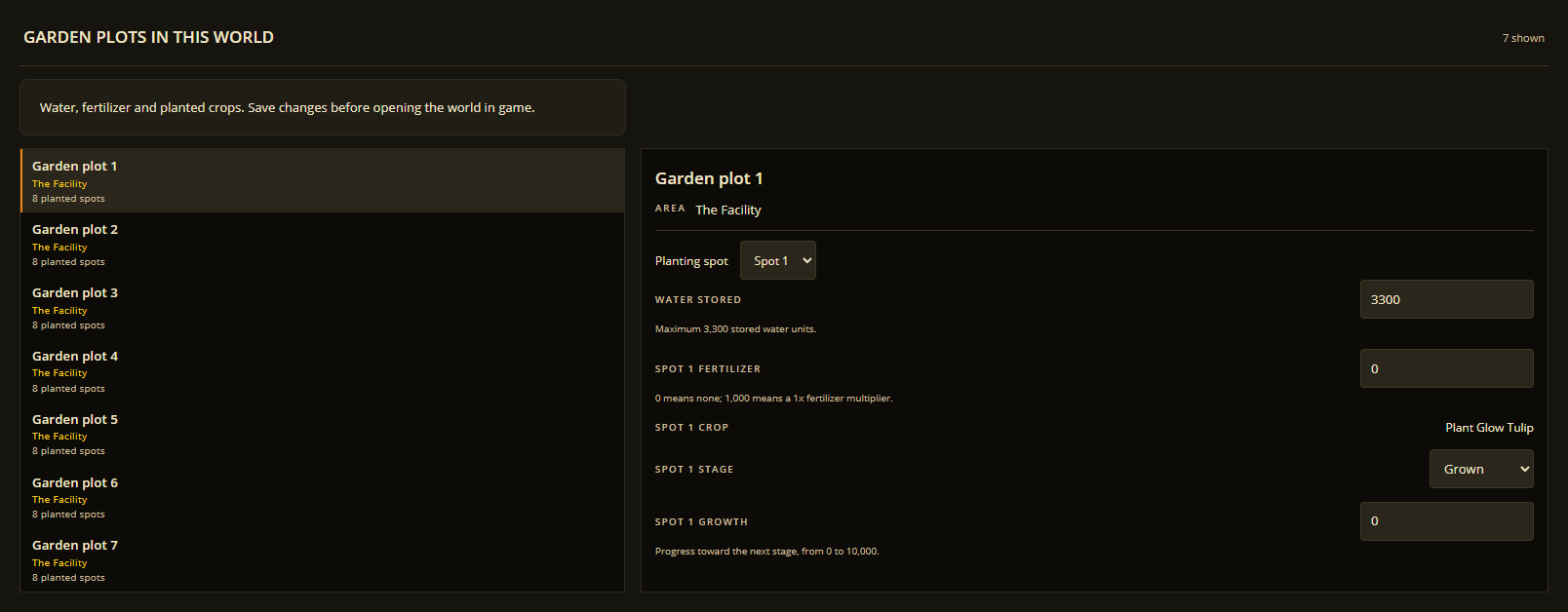
Open a region and choose Garden plots. This tab appears when the region contains supported placed plots. Choose a plot, then choose a Planting spot.

  • Water belongs to the whole plot. The editor enforces the supported plot's capacity.
  • Fertilizer belongs to an individual spot. Zero means no fertilizer; 1,000 is the game's stored value for a 1x multiplier.
  • The crop is a picker, limited to the growable plants the installed game itself defines (fruit, vegetables and the other planet-grown crops - the "digital farm plot" ammo cartridges are a different item family and are not offered here). Choosing a different crop resets that spot's growth stage and progress back to a fresh planting. A crop already saved that the picker does not recognise (a mod, or a future game update) is kept as its own selectable option rather than dropped.
  • Growth stage uses the game's names: Sprout, Budding, Juvenile, Flowering, Grown, Harvested, Regrowing and Dead. Growth progress is 0 to 10,000 toward the next stage.

Only fields actually present in the save are offered. Digital garden plots are excluded: their water and growth behavior differs. Unsupported or future layouts remain intact. Planting into a spot that has never held a crop, and clearing a spot back to empty, are not supported yet: no real save so far shows what that field looks like, and guessing the shape risks a save the game cannot read (see docs/reference/research/ for what was checked).

Garden plot water, fertilizer and growth controls

Choose one plot and one planting spot at a time.

Chemistry benches

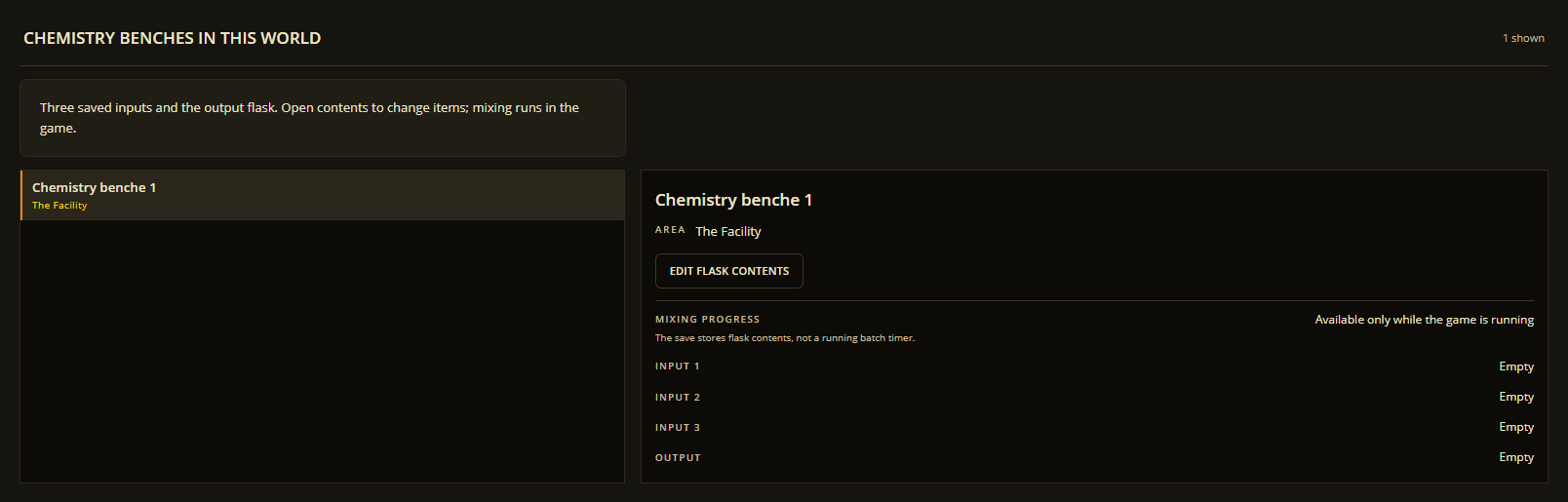
Open Chemistry benches in a region containing a bench. The panel distinguishes the three saved input slots from the output slot. Edit flask contents opens that bench in the existing container editor.

The current game's processing flag and batch timestamp are runtime properties, not saved batch progress. The offline panel therefore does not offer a start, pause or progress control. Make and run mixtures in the game. The contents editor remains a save editor and does not simulate recipes or guarantee a valid mixture.

Chemistry bench contents

Select a bench to inspect its saved contents.

Pet feeding and mutation

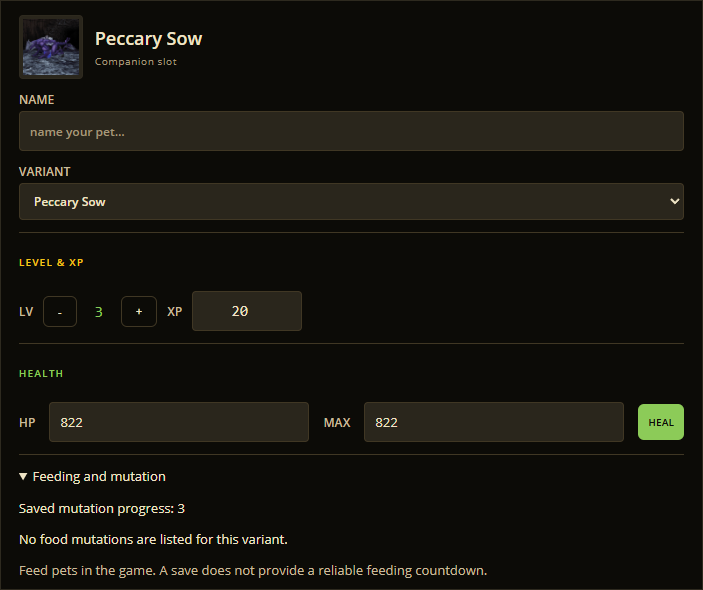
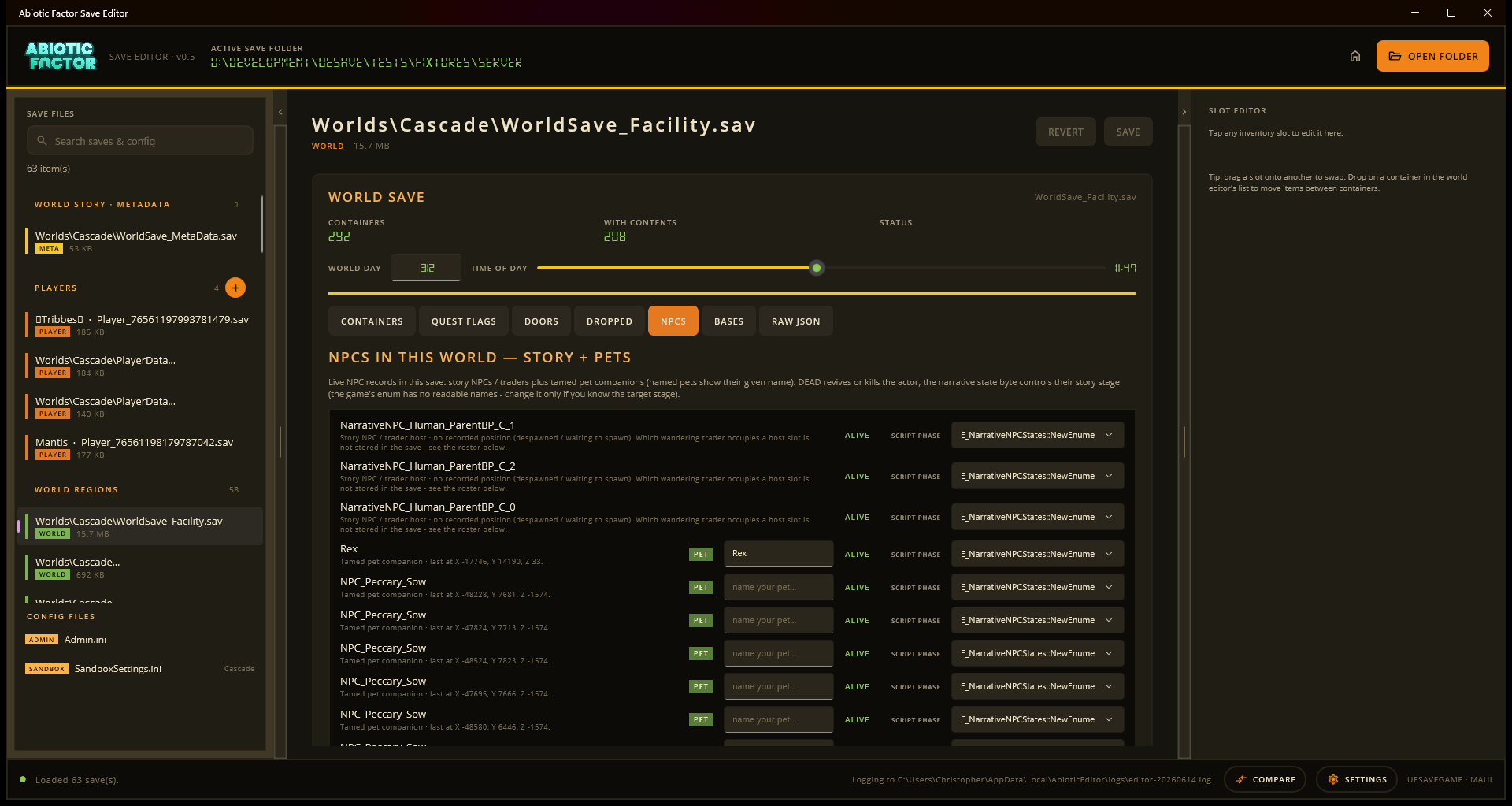
Select a carried pet under Companions, or a placed pet under Pets, and expand Feeding and mutation. The guide shows taming foods and mutation foods listed for that variant in the installed game. Item names come from the item catalog.

Carried pets also show their stored mutation-progress value, and it is now editable, both in a saved file and in a running game (COMPANIONS). Negative values are rejected. The game's own tables carry no explicit maximum for this counter, so the editor does not cap it; it only shows the highest value seen in real saves so far (3) as a hint, and a higher value already in your save is kept as it is. The mutation target itself (PetMutation, which mutation the pet has already become) is now a picker too, in both places. Options come from the installed game's own mutation table for that pet's family (the same one the food list above is built from), plus "Not mutated" and the current saved value when it is not one of the resolved options. Existing variant controls remain the way to choose a different pet form; this picker only changes which mutation is recorded as applied, it does not change feeding cooldowns, apply mutation food, or validate that the pet could actually reach that mutation in game. A save does not provide a reliable live feeding countdown. If a variant has no mutation recipes in its table, the guide says so.

Carried companions

Select a pet to open its details and feeding guide.

Power Chairs

A region containing a saved, deployed Power Chair gains a Power chairs tab. Select one to change its battery charge from 0 to 200. The charge is read from the same item field used by the game's rechargeable component. Chairs do not get storage controls. If charge is absent from the save, the panel reports that it is unavailable.

Story characters

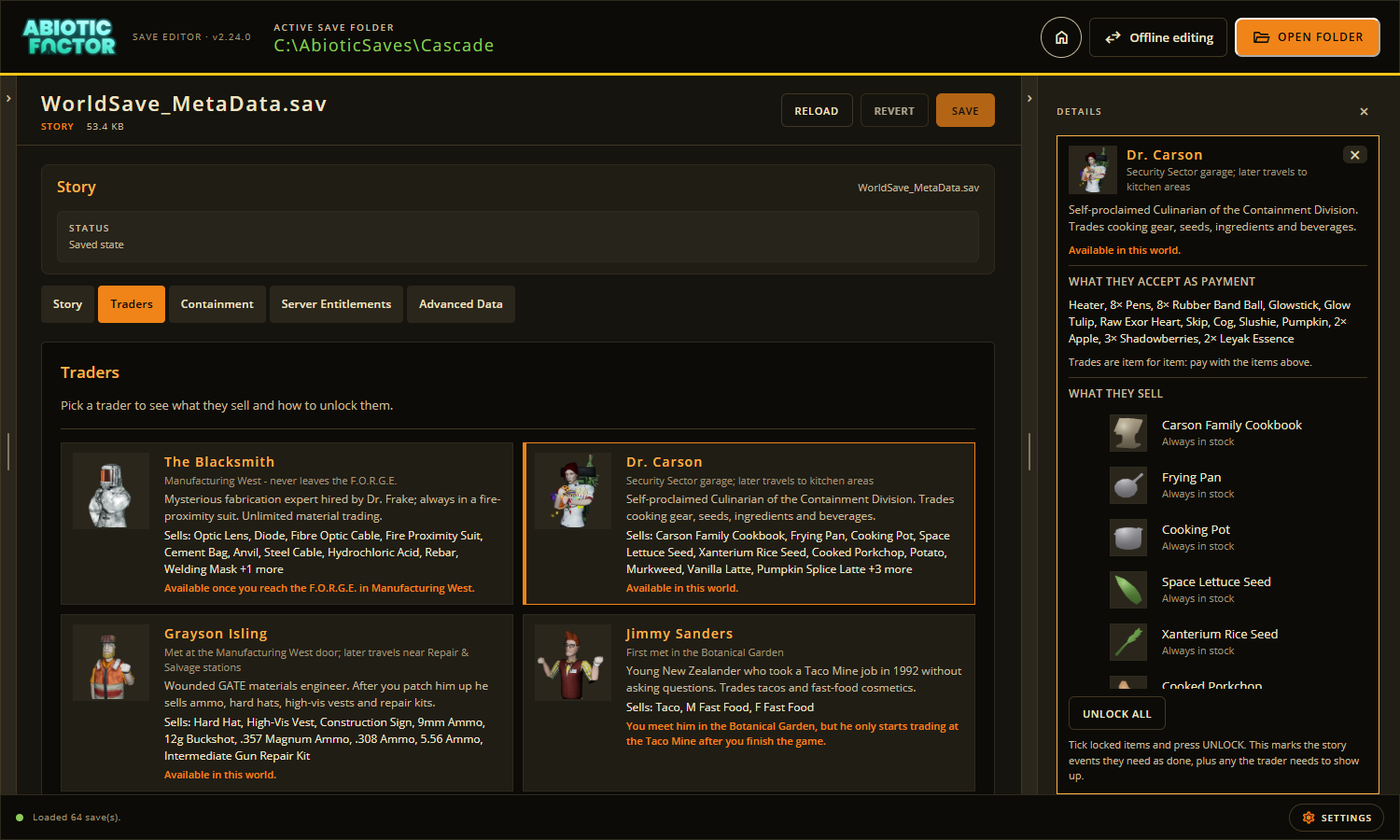
The character list resolves names from placed actors' conversation rows in the installed game. If the map or conversation cannot be resolved, the existing actor label remains. Names identify the placed character; the same person may have multiple story appearances.

Story stage is collapsed by default. Its picker preserves the six known stage values and any unknown value already saved. The game's stage enum has no universal semantic labels: Stage 3 does not mean the same quest milestone for every character. Changing a stage can skip dialogue, so the editor does not invent labels such as "quest complete".

World story characters

Choose a character before opening its story-stage controls.

Add omitted sandbox settings

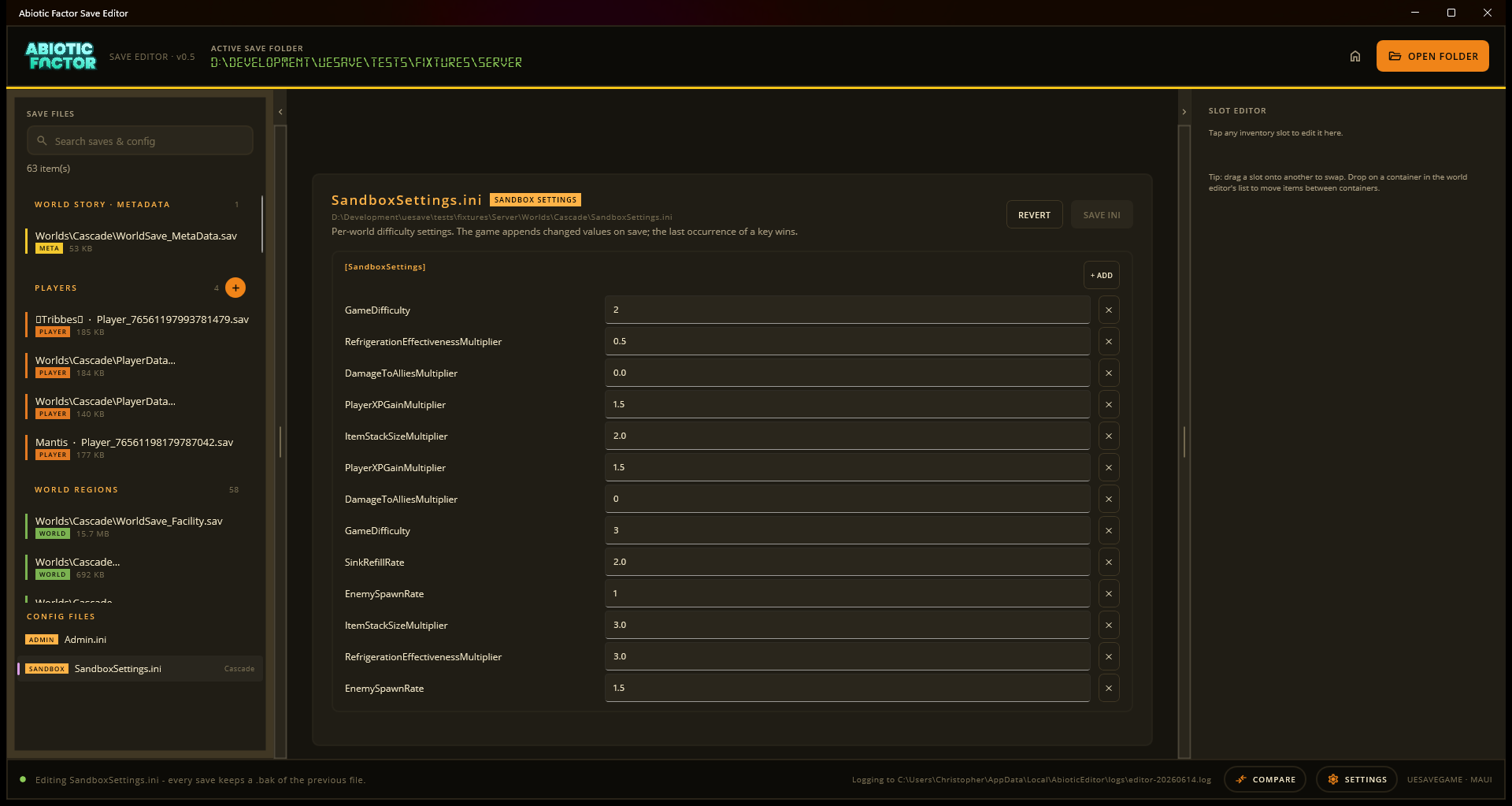
Open SandboxSettings.ini and expand Add a setting. Choose an option, optionally expand What this changes, then add it. The editor stages the game's default value; it does not change the file until Save settings. Existing options are excluded from the picker, and Revert removes unsaved additions.

Definitions come from the installed DT_SandboxOptions table, including default values, choice labels and data types. Unimplemented options are excluded. The current table includes ApocalypticAbilities and MaximizeEnemySpawns. Game display names are used in the editor; Technical details shows original keys. Existing values that do not exactly match a listed choice remain available as saved values.

If the game folder or mappings are unavailable, the editor still edits existing settings. It cannot discover new options without the installed table. No second hard-coded list of wiki display names is used as configuration keys.

Sandbox settings editor

Settings stay staged until you choose Save settings.

Breakable objects

Open a region and choose Breakable objects. This tab lists every ice wall, spore web, ceiling tile and other breakable prop the world save has recorded as broken. The save only remembers an object once it stops being intact, so an untouched prop never shows up here at all. Toggle Broken off to repair one.

There is no bulk "restore all"; each object is repaired one at a time, the same way every other world-map tab in the editor works.

Corpses

Open a region and choose Corpses. Every NPC body still lying around in that region is listed by its creature type (Human, Monster Generic, Order Grunt, and so on), along with whether it was gibbed and whether you already looted it. Remove this Corpse clears one from the save, useful for tidying up a base after a fight.

Corpses are removed one at a time; there is no bulk clear. The game itself decides whether a cleared corpse's actor respawns.

Verification and limits

Automated checks cover coating writes and removal, garden save/reload behavior and unrelated-plot preservation, invalid values, chemistry readouts, INI additions and backups, existing pet/inventory behavior, and breakable-object/corpse edits (toggle and removal, re-read, and save/reload round trips) against real dedicated-server region saves. Browser checks use copied saves at desktop and phone widths. A copied INI was saved to verify the exact added key and its default.

These checks do not establish runtime replication or in-game rendering. No connected game was used for this implementation's smoke test. The supplied world has no deployed Power Chair fixture, so its battery mapping is verified against game scripts and item metadata, not a real chair save/reload session. Runtime-only controls remain unavailable offline.

A fan-made tool. Not affiliated with or endorsed by the developers of Abiotic Factor.