
Edit in your browser
Need a quick repair before the next expedition? Open the editor. There is nothing to install and your saves stay on your computer. The page reads only the folder you choose. It does not upload your world to a server.
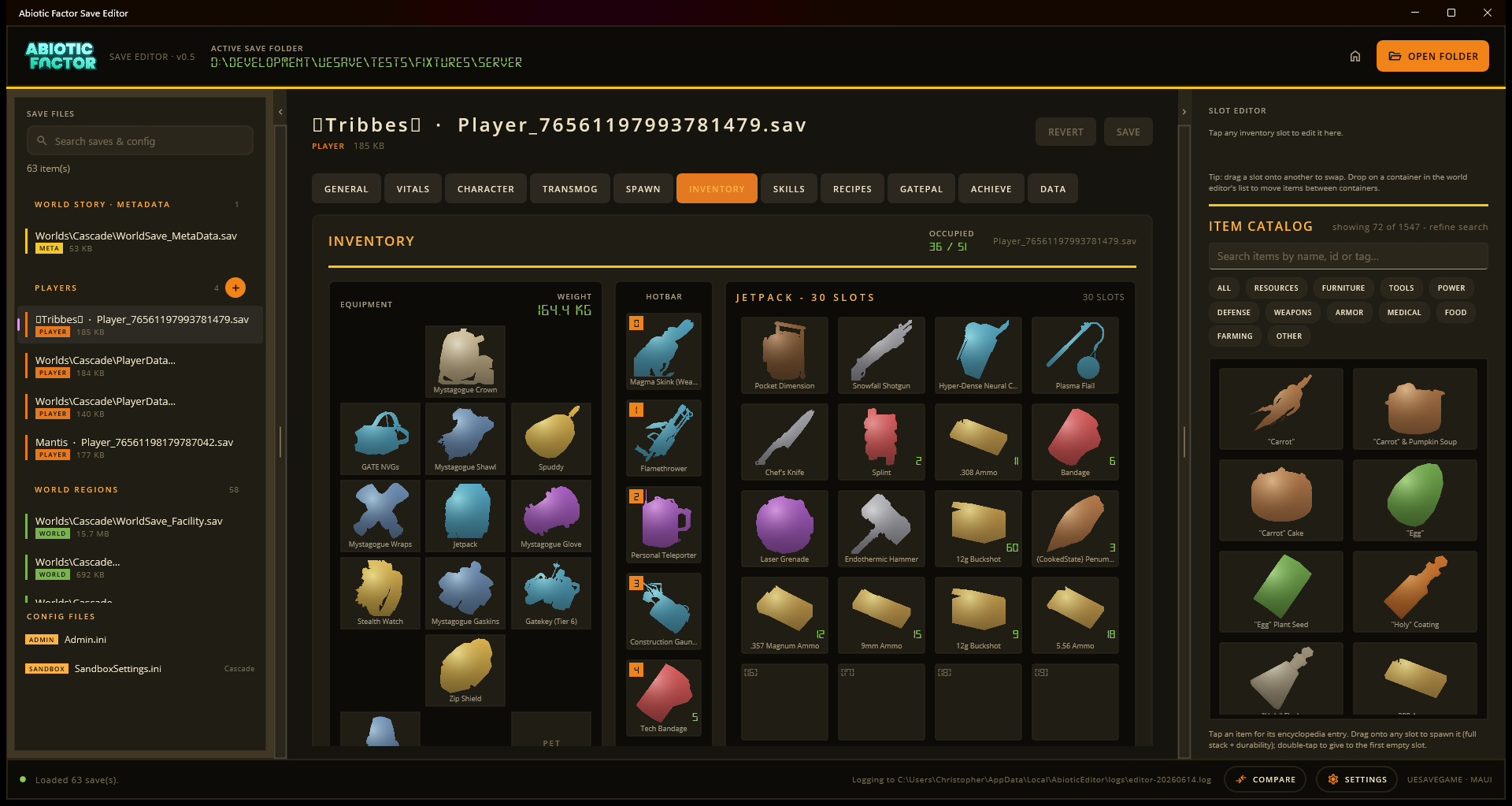
The browser editor has the same tabs and controls as the desktop app. Opening and saving files works a little differently, as described below.
Open the right locker
Choose your account folder, not just one world, when possible. That gives the editor every world plus your saved character appearance.
SaveGames/
└── 76561198000000000/     <- choose this folder
    ├── ScientistCustomization_1.sav
    └── Worlds/
        ├── Cascade/
        └── Chrissie/
On Windows it is usually under %LOCALAPPDATA%\AbioticFactor\Saved\SaveGames\<your SteamID>. Choose OPEN FOLDER, pick that account folder, and allow the browser to see it. You can also drag the folder anywhere onto the editor window.
Choosing one world still works for player inventories, regions, and story progress. The only thing it misses is the character-look editor, because those appearance files sit beside Worlds.
Save, then pack your export
- Make your edits.
- Choose SAVE to commit them inside the editor.
- If you see EXPORT, choose it and keep the downloaded zip.
- With the game closed, copy the exported files back into the matching game save folder before playing.
Export follows Save
EXPORT contains saved changes. If you have staged changes, choose SAVE first or they will not be in the zip.
Chrome, Edge, and Opera can normally write straight back to the folder you opened and keep a .bak copy of the previous file. Firefox and Safari keep edits in the page, then rely on EXPORT because those browsers do not allow a web page to write into your folders. Export before closing or refreshing the tab.
Carry a zip instead
Choose OPEN A ZIP, or drag a save zip onto the page. This is handy for Firefox and Safari, or for passing a backup between computers. Zip sessions always leave through EXPORT, even in Chrome and Edge.
The editor remembers recent folders as bookmarks, not copies of your saves. When you return, choose OPEN and your browser will ask for access again.
Jobs that need the desktop app
The browser edition handles ordinary player and world editing: inventory, skills, recipes, GatePal entries, containers, story events, pets, vehicles, story progress, character appearance and the world lists. It has the 3D view too, with every piece drawn as a box. Use the desktop app for these jobs:
| Job | Why it needs desktop |
|---|---|
| The 3D view with the game's own models and level | It reads your installed game files. |
| Edit a running game | It needs a local game connection. |
| Move items between worlds | It opens two save files side by side. |
| Game Pass saves | It needs access to the Game Pass save container. |
| Compare two saves or make a new world | It needs to choose files from different places. |
| Server settings, achievements, or plugins | It needs access beyond the folder you opened. |
| Find saves automatically | Browsers are not allowed to search your computer. |
If the browser refuses a folder
Choose the save or account folder itself, not a whole drive or your entire user folder. If the saves are in a protected location, copy them into a normal folder first, edit the copy, then use the exported result. The desktop editor is the better option when a browser keeps getting in the way.