Live editing
Live editing lets the editor talk to an Abiotic Factor world that is already running. It is an advanced mode, handy for a quick field adjustment. Offline editing is the safer workbench: it has more tools, lets you review changes before SAVE, and creates a .bak backup each time it writes.
Live changes happen as you make them. There is no universal SAVE, undo button, or editor backup, so make a normal in-game backup before experimenting.
| Offline editing | Live editing | |
|---|---|---|
| Start here | Close the game or stop the server | Load a world in the running game |
| Changes happen | When you choose SAVE | As you edit or use an action |
| Safety net | A .bak backup on every write | Make your own backup first |
| Tools | Full save-file editor | Supported live tools only |
| Browser edition | Yes | No |
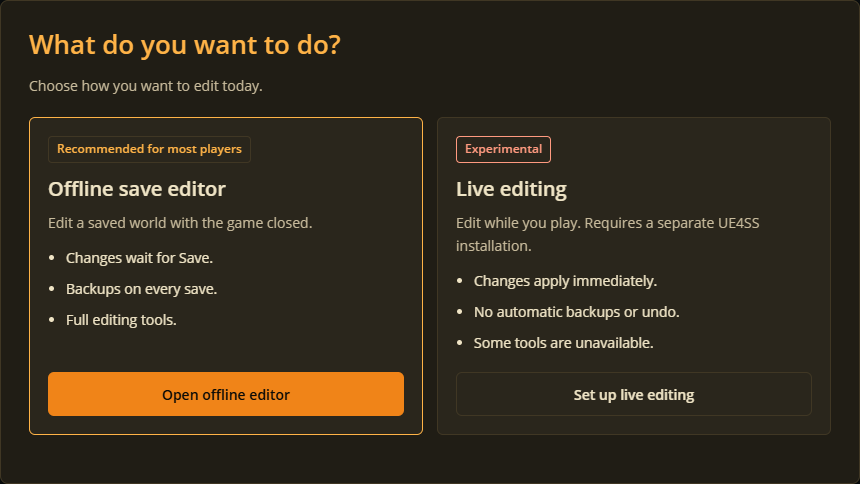
Choose the mode first. Offline edits wait for Save; live changes apply immediately.
Set up this PC (Windows)
Live setup works in the complete Windows desktop release, and in the Linux desktop release for a game running through Steam Play (Proton) - see Set up this PC (Linux / Steam Play) below. The browser edition cannot connect to a live game.
Live editing needs UE4SS, a separate open-source mod loader (MIT licensed). The Windows and Linux releases include a copy and install it into your game folder with your permission. An existing UE4SS install is left alone.
- Close Abiotic Factor, or stop the server.
- In the editor, open the editing-mode button, choose Set up live editing, then This PC.
- Pick which copy of the game to use. The editor lists every copy it finds on this PC (each Steam library and any Game Pass install), with the one you used last time already selected, and Choose another folder lets you point it at a copy it did not find. The choice is remembered as the game folder in Settings.
- If UE4SS is not already installed, the editor shows a consent screen naming the bundled UE4SS version and the exact folder it would install into:
Binaries/Win64for a Steam copy,Binaries/WinGDKfor a Game Pass copy. Review it, make sure the game is closed, then choose Install. - The editor installs UE4SS and its own editor helper in one step, then starts the helper.
- Start the game, load a world, and wait for the editor to connect.
If the editor cannot find Abiotic Factor, use Choose another folder on that step (or set the installed game folder in Settings ▸ Game Data ▸ Set game folder), then try again. This is not your saves folder.
Game Pass copies
A Game Pass / Microsoft Store copy works the same way; the editor finds it under XboxGames on any drive and installs into its Binaries/WinGDK folder. The Xbox app keeps that folder locked until you turn on mods for the game: open Abiotic Factor in the Xbox app, use the ... menu and choose Enable mods. If the editor reports the folder is locked, that switch is what it needs.
Existing mods
If you already use UE4SS, keep its settings and other mods. Follow the loader publisher's upgrade guidance instead of overwriting files blindly. The editor recognises the usual nested ue4ss/ layout and older flat installs, and never overwrites an install it finds there, but custom redirected paths are not detected automatically.
If your copy of the editor has no bundled UE4SS
A dev build of the editor, or a build without live-support files, has no UE4SS to install for you. In that case the editor shows the manual steps instead:
- Choose Get UE4SS. Download the standard
UE4SS_*.zipfrom the official experimental release page. Do not usezDEVor a source-code archive. - Choose Open game folder and extract the ZIP contents into the folder the editor shows. For a usual Steam install, that is
<Steam library>/steamapps/common/AbioticFactor/AbioticFactor/Binaries/Win64/; for a Game Pass install it is<drive>:/XboxGames/Abiotic Factor/Content/AbioticFactor/Binaries/WinGDK/. - Keep the ZIP's folder structure. The folder needs
dwmapi.dll,ue4ss/UE4SS.dll, andue4ss/Mods/shared/UEHelpers/UEHelpers.lua. Do not put them inside an extra ZIP-named folder and do not put them in your saves folder. - Return to the editor and choose Check again. When it detects UE4SS, choose Set up editor helper while the game is still closed.
- Start the game, load a world, and wait for the editor to connect.
Game updates can change which UE4SS build works. Read its official installation guide if your install uses a different layout.
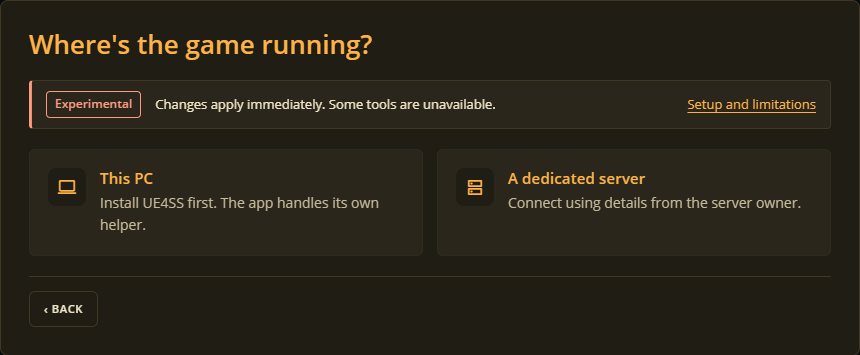
This PC guides local setup. A dedicated server needs details from its owner.
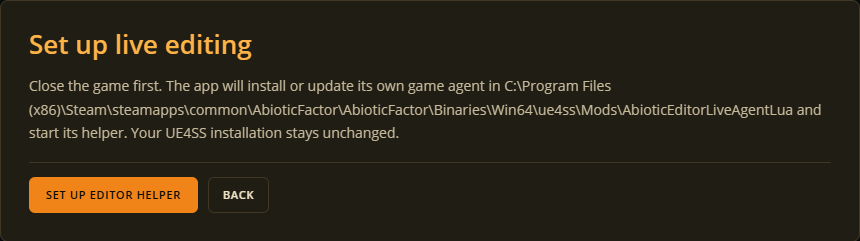
UE4SS is already installed separately in this example. This button installs the editor helper, not UE4SS.
Set up this PC (Linux / Steam Play)
The Linux desktop app can set up live editing for a Steam copy of the game running through Steam Play (Proton), including on the Steam Deck. Abiotic Factor has no native Linux build, so nothing here is different in principle from Windows: the same bundled UE4SS package and the same editor helper are installed into the same Binaries/Win64 folder inside the game's Steam library. Two things are specific to Proton:
- The game must have been launched through Steam at least once already. Steam only creates the per-game Proton profile (called a "prefix") the first time you actually run the game, and the editor's helper needs that profile to find the same
%LOCALAPPDATA%the in-game mod uses. If setup reports it cannot find your Steam Play profile, start Abiotic Factor once from Steam, let it reach the main menu, quit, then retry This PC. - UE4SS may need a Steam launch option under Proton. If UE4SS does not seem to load (no
ue4ss/UE4SS.logappears next to the game after you play), right-click Abiotic Factor in your Steam library, choose Properties ▸ General ▸ Launch Options, and enter:This tells Proton to use the UE4SS loader in the game folder instead of its own built-in file with the same name.WINEDLLOVERRIDES="dwmapi=n,b" %command% - Wine runs the editor's small helper program. UE4SS and the in-game part run inside the game, as on Windows. The separate helper the editor starts is a Windows program, so it runs through Wine, in the same Proton folder as the game. Most systems that run games through Steam Play have Wine, or can install it from their package manager (for example
sudo apt install wineon Debian or Ubuntu,sudo pacman -S wineon Arch). To use a particular Wine build, set theABIOTIC_LIVE_WINEenvironment variable to its path before starting the editor.
Everything else follows the same steps as Set up this PC (Windows) above: close the game, choose This PC, pick the detected copy, and let the editor install UE4SS and its own helper.
Linux notes
The desktop editor's own window needs a recent Linux (glibc 2.38 or newer, roughly Ubuntu 24.04 and up, or an equivalent on other distributions). Live editing on Steam Play also needs Wine installed, so the editor can run its small helper inside the game's Proton folder.
If This PC setup gets stuck, or the game never connects after UE4SS and the helper both report ready, please file an issue with the editor's diagnostics log attached.
Live editing is not available on macOS. Offline save editing works there as usual.
Updating or reconnecting
Choose This PC again. The editor checks its bundled agent files and offers an update when needed. Close the game, run Set up editor helper, then restart the game and load your world.
UE4SS updates ship together with editor releases, and the editor never replaces an install it finds already there. To move to a newer bundled UE4SS build, close the game, delete the ue4ss folder and dwmapi.dll from Binaries/Win64 (Binaries/WinGDK on Game Pass), then choose This PC again to install the newer bundled build. If you manage UE4SS yourself instead, keep updating it separately through its publisher.
If the live-agent folder is missing from a Windows release, extract the complete release again. Source-build help is in the agent source instructions.
Connecting to a server you run
Set up the helper on the server machine, while its game is stopped. On a Windows machine with desktop access, install UE4SS there and use This PC. Start the server afterward and keep the helper running under the same Windows account as the game.
Then choose the remote-server option in the desktop editor and enter the helper's host, port, and token. The usual port is 42117; use the helper's actual port if it differs. Local details are in %LOCALAPPDATA%\AbioticEditorLiveAgent as token.txt and port.txt. If you run the editor with a portable data folder (ABIOTIC_APPDATA_DIR), they are in its live-agent subfolder instead.
Only the server owner can make the helper reachable through their network and firewall. Treat its token like a password. Do not include it in screenshots or reports. Joining somebody else's multiplayer server does not give the editor control over it.
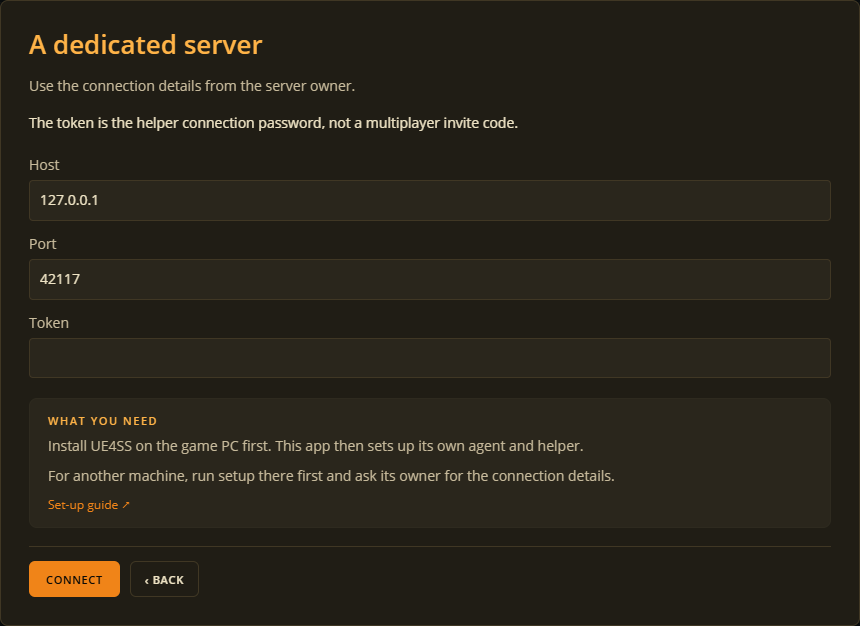
Enter the server helper details. Never share a screenshot containing your token.
What you can change
Live controls depend on the selected player, your host authority, and what the game currently has loaded. Hosts can work with other connected players and world objects. A client can change supported parts of their own character. Objects outside loaded sectors cannot appear at all; move close to them and refresh, or edit their region save offline instead.
Player
| Area | Works live | Host-only | Not possible live, or read-only, and why |
|---|---|---|---|
| Vitals and limb health | Hunger, thirst, sanity, fatigue, continence, money, and every limb's health | No, for your own character (a host can also reach other players) | |
| Skills | XP and XP multiplier for each skill | No, for your own character (a host can also reach other players) | |
| Inventory, transmog and weapon coatings | Item, stack, durability and magazine ammo in your backpack, equipped, hotbar and transmog slots; moving an item into or out of a nearby container keeps every extra detail it carries (pet progress, weapon coatings, custom variants); the six "hide this armor piece" transmog toggles; weapon coatings themselves | No, this is your own inventory (a host can also reach other players') | |
| Companions (carried pets) | A carried pet's name, health, XP, mutation progress, and its mutation target, from the Companions tab | No, this is player-owned data | Clearing the active Companion slot only makes a Pest- or Skink-family pet's matching world creature disappear too. A carried Peccary or Lamogi carries none of the id information the game needs to find and remove its matching world creature, so it is left behind, still wandering around, after you clear the slot |
| Recipes | Unlocking any recipe (Unlock All sends one request, not one per recipe) | Unlocking: no. Relocking a recipe: yes | Relocking needs a game/agent build that can read the recipe list back; an older one explains why instead of just hiding the control |
| Codex / GatePal (emails, journal, fish, compendium) | Marking any entry known, including kill-tracked compendium sections now (Mark All sends one request); on a supporting agent, marking an entry unknown again | No, this is player-owned data | Marking an entry unknown again needs an updated agent; an older one keeps this read-only |
| Quests (GatePal, game 1.5 and newer) | Seeing the quest lines and which objectives are active, and choosing which line your character tracks | No, this is player-owned data (your own character only) | Needs an updated agent. Completed and upcoming objectives come from the world's story flags |
| Quests (GatePal, game 1.5 and newer) | Seeing the quest lines and which objectives are active, and choosing which line your character tracks | Yes (your own character only) | Needs an updated agent; completed and upcoming objectives come from the world's story flags |
| Traits | Adding or removing a trait, and its matching buff | Yes, even for your own traits | |
| Appearance | Every customization slot: head, hair style, hair color, shirt color, upper and lower body, shoes, belt, beard, wristwatch, tie, ID card, and head accessory | Yes | Only the local computer's own character can permanently save the new look to its profile; another connected player's look can be changed live but not saved from here |
| Spawn point and respawn terminal | Teleporting a character to exact coordinates; claiming a different respawn terminal | Teleporting another connected player: yes. Your own position: no | Claiming a respawn terminal only ever applies to your own character, never another player's - the game gives no way to reach anyone else's for this |
| Discoveries (items seen, maps, background) | Marking an item seen, a map discovered, and changing your background; on a supporting agent, marking an item crafted | No, this is player-owned data | Crafted-item discovery needs an updated agent |
| Account (which save file a character belongs to) | Nothing | This only exists as a file rename made before the save is ever loaded, so there is nothing running in the game to change - the editor shows your connected id as a read-only line here instead |
World
Every world edit below needs host authority, the same requirement every world area has always had, except where the table says otherwise.
| Area | Works live | Host-only | Not possible live, or read-only, and why |
|---|---|---|---|
| Flags and story | Setting or clearing any world flag; moving the main story chapter forward or back (the editor works out the right flags to set and clear on its own) | Yes | |
| Clock and weather | The day, time of day, current or next weather event, and the world's total play time | Yes | Pausing or resuming the clock can be read but not set live |
| Doors | Open (inwards or outwards) or closed, the one-way-unlocked flag, and disabling a door | Yes | Only doors currently loaded near a player respond; move closer and refresh for one that doesn't |
| Containers | Full slot editing (item, stack, durability, and every extra detail an item carries), sorting a container, moving items in or out | Yes | |
| Dropped items | Listing, removing, and spawning a new dropped item, optionally at an exact position | Yes | |
| Bases and bench upgrades | Renaming a placed object, installing or removing a bench upgrade on a bench that has one, repainting a placed object from the Painted objects list | Yes | A bench or crate's own stored contents open through the Containers tab, not here; a bench whose upgrade tags can't currently be read explains why instead of silently doing nothing |
| Vehicles | Driveable state, wrecked state, position, and a vehicle's on-board cargo storage (the same slot editor as any other container) | Yes | |
| Pets (tamed) | Pest- and Skink-family pets: name, health, XP, and changing which creature species the pet actually is. Every other tamed creature (Peccary, Lamogi, and others with no stable id): health only | Yes | Species change is refused for a pet with no stable id, since the game has no way to confirm afterward that the result is still "the same pet" |
| NPCs, story characters | Whether they're a corpse, their story stage, and the shared Dead toggle, for named story characters and traders, with real in-game names shown | Yes | Only characters currently loaded nearby respond |
| NPCs, creatures | Disabled, invincible, faction, and the shared Dead toggle, for any nearby wildlife, monster, robot or humanoid NPC, with real creature names shown | Yes | Only creatures currently loaded nearby appear at all. This side has no offline file equivalent - the save file never remembers what was loaded in the world |
| Containment (Leyak Containment Units) | Assigning, releasing, or swapping which creature a unit holds | Yes | |
| Traders | Unlocking a trader (sets the story flags that gate them) | Unlocking: yes. Browsing stock: no | |
| Portals (World Teleporters) | Whether a pad is active and unlocked | Yes | Which pad links to which destination is baked into the level and can't be changed |
| Elevators | Sending a platform up or down by pressing the game's own buttons (real travel time, so a request can report success while the platform is still moving) | Yes | An elevator type the editor doesn't recognize lists as "not controllable" instead of a toggle |
| Buttons | Enabled, activated, the "no vignette reset" flag, and whether it's been pressed once, in both directions | Yes | Setting "pressed once" back off only lasts until the button is genuinely used again in-game (by a player or anything else that presses it), because using a button always marks it pressed once |
| Resource nodes | Marking a node harvested, or respawning it, through the game's own respawn/deplete functions so it reappears or vanishes with the right effects | Yes | Removing a node entry, the way the offline editor can, isn't offered live, since nothing live resets a node that completely. A node with a "keeps respawning on its own" flag always ends up depleted rather than respawned when asked to respawn, and there's no way to see that flag ahead of time |
| Breakables (destructible objects) | Breaking an object, with the same effects a real break has | Yes | Repairing a broken object is not possible live - the game has no way to rebuild a broken object's look and collision once it's been broken, until you reload the world |
| Corpses | Removing a corpse outright, with no undo | Yes | Whether a corpse is gibbed or already looted can't be changed live, since there's no in-game reason to flip either by hand |
| NPC spawners | Setting the exact cooldown time remaining, resetting the cooldown immediately, forcing a spawn attempt | Yes | The offline "minutes into the day the cooldown started" field has no live match, since the game only tracks cooldowns by whole day. A forced spawn may not always produce a visible creature |
| Triggers | Setting the exact trigger count, or a full reset that also re-arms the trigger itself | Yes | A trigger's own configured limit is informational only and can't be changed |
| Power sockets | Nothing is settable | n/a | Everything here (its id, what's plugged into it, whether it's powered, its timer) is read-only, because the game clears a socket's timer state back off every single time anything saves that socket, so nothing written here could ever stick |
| Trams | Recalling a tram to a station that has a recall point wired to it | Yes | A tram can only be sent to a station with a real recall point placed in the level, a narrower set than the offline editor's "any station the save has ever mentioned". A recall is a real, sometimes multi-stop journey, not a teleport |
| Garden plots, Power Chairs and chemistry benches | A plot's water level, and its fertilizer and growth stage/progress per planted spot; a Power Chair's charge | Yes | A plot's planted crop and a chemistry bench's flask contents are read-only here, but a chemistry bench's flasks are the same slots as any other container, so open it from the Containers tab to actually change them. Planting an empty garden spot, or clearing a planted one, still isn't supported at all, the same as offline |
| World-wide seen lists (items picked up, emails read, journal entries, and the three compendium categories, tracked for the whole world rather than one player) | Adding or removing any entry, browsable and searchable from the Story tab | Yes |
The live-editing protocol has the technical details of each action. A game update can change what works live, so update the editor and its helper after one.
Field fixes
| Problem | What to do |
|---|---|
| Game not found | Use Choose another folder on the copy-of-the-game step, or set it in Settings ▸ Game Data, then retry |
| Game must be closed | Exit the game or stop the server, then retry This PC |
| UE4SS still missing | Check the displayed folder (Win64, or WinGDK on Game Pass) for the runtime and shared UEHelpers file, with no extra folder level |
| Permission error | Use a Windows account allowed to write to the game folder |
| Game Pass folder locked | In the Xbox app, open the game's ... menu and choose Enable mods, then retry |
| Agent update needed | Close the game, run helper setup, then restart and load the world |
| No world or object listed | Load into a world, move near the object, then refresh |
| Connection failed | Check that UE4SS loaded the mod and the helper is running, then restart after an update |
An item exists but is invisible
Old agent versions could leave behind the wrong item details. Update the agent by closing the game and running This PC setup again. Restart the game, refresh the inventory or container, and apply the intended item again. For a ground item, remove it and add it again.
If validation fails, check Settings ▸ Game Data points at the same game install and reload its data. A failed batch does not partly edit your inventory or container.
Turning the helper off
Disconnecting stops editing but does not undo changes or uninstall the agent. To disable it, close the game and change AbioticEditorLiveAgentLua : 0 in mods.txt. Keep shared UE4SS files if another mod needs them. Running helper setup again can enable the agent.