
Bases, the map and the 3D view
Open a region save and choose the Bases tab. At the top you switch between Map and 3D view, and pick a base in Base to show.
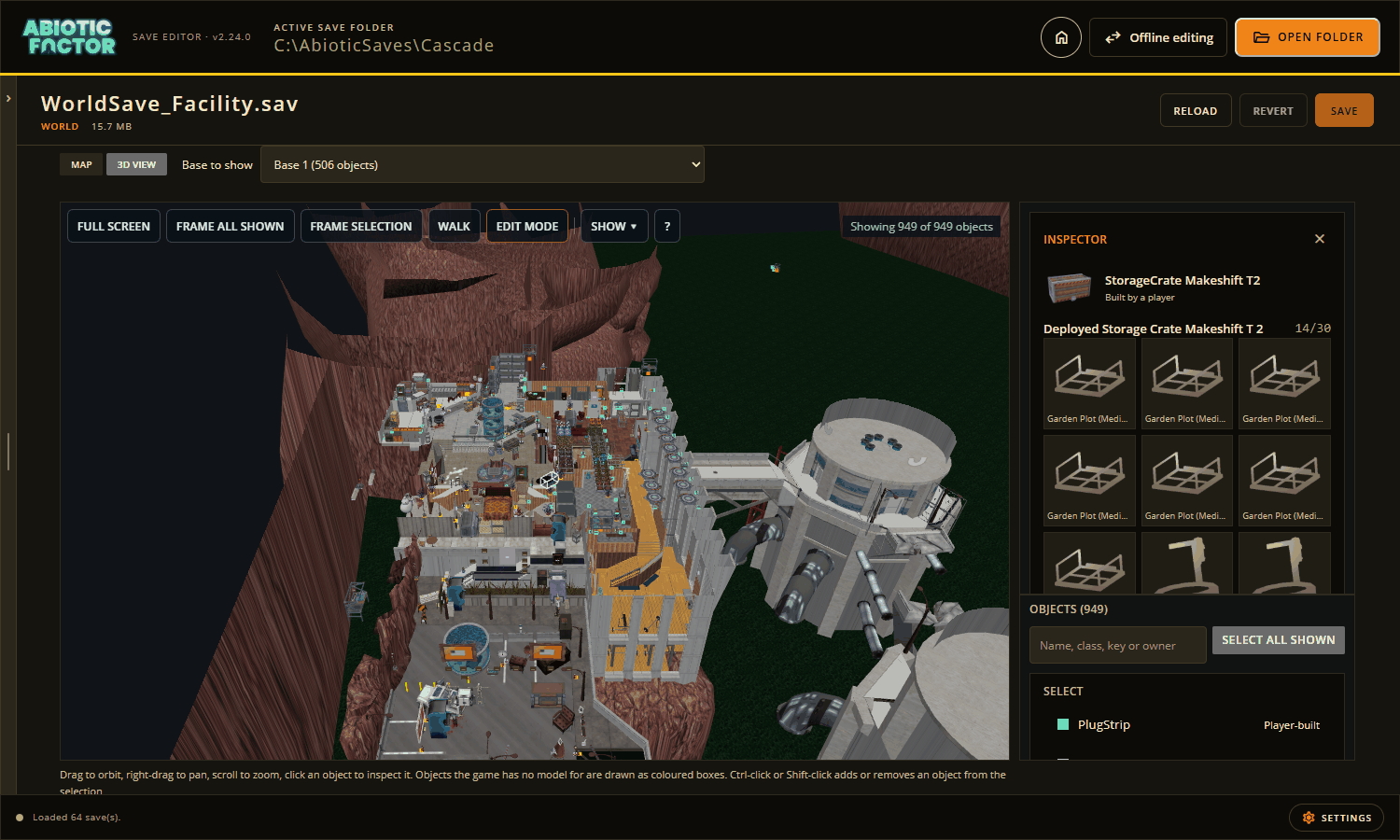
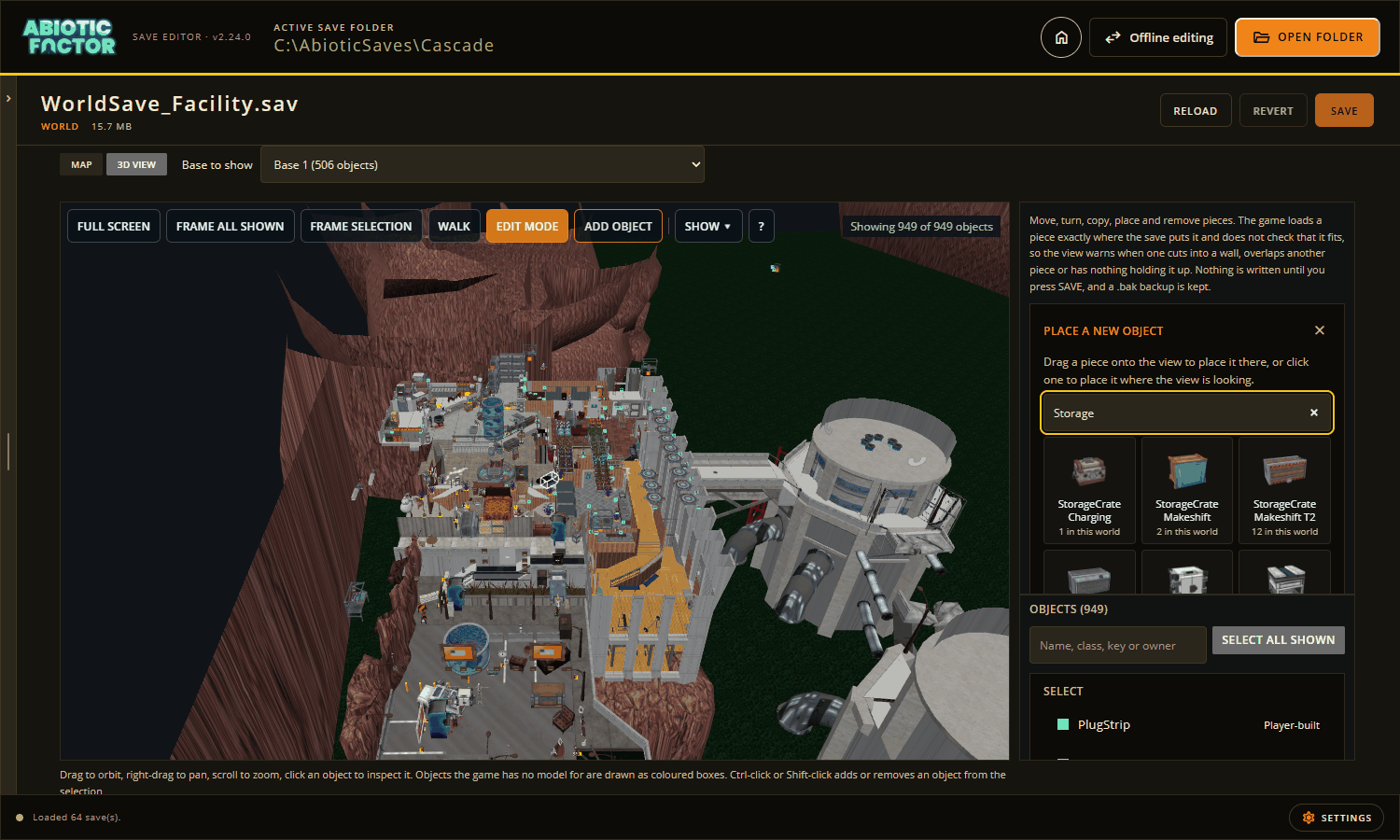
The 3D view draws your base with the game's own models. The card on the right belongs to the piece you clicked.
Where the models come from
The desktop app draws everything with the game's own models and textures. It reads them from your installed copy of Abiotic Factor, so nothing from the game is in the editor download, and there is nothing extra to install. The editor needs to know where the game is: the same setting that shows item pictures (Settings ▸ Game data, see Game data).
The browser version has the 3D view too. It cannot read game files, so every piece is drawn as a box. Moving, copying, placing and wiring work the same way.
Get the 3D view ready
The first time the view shows an area, it reads that part of the world from your game files. In a big area that can take minutes.
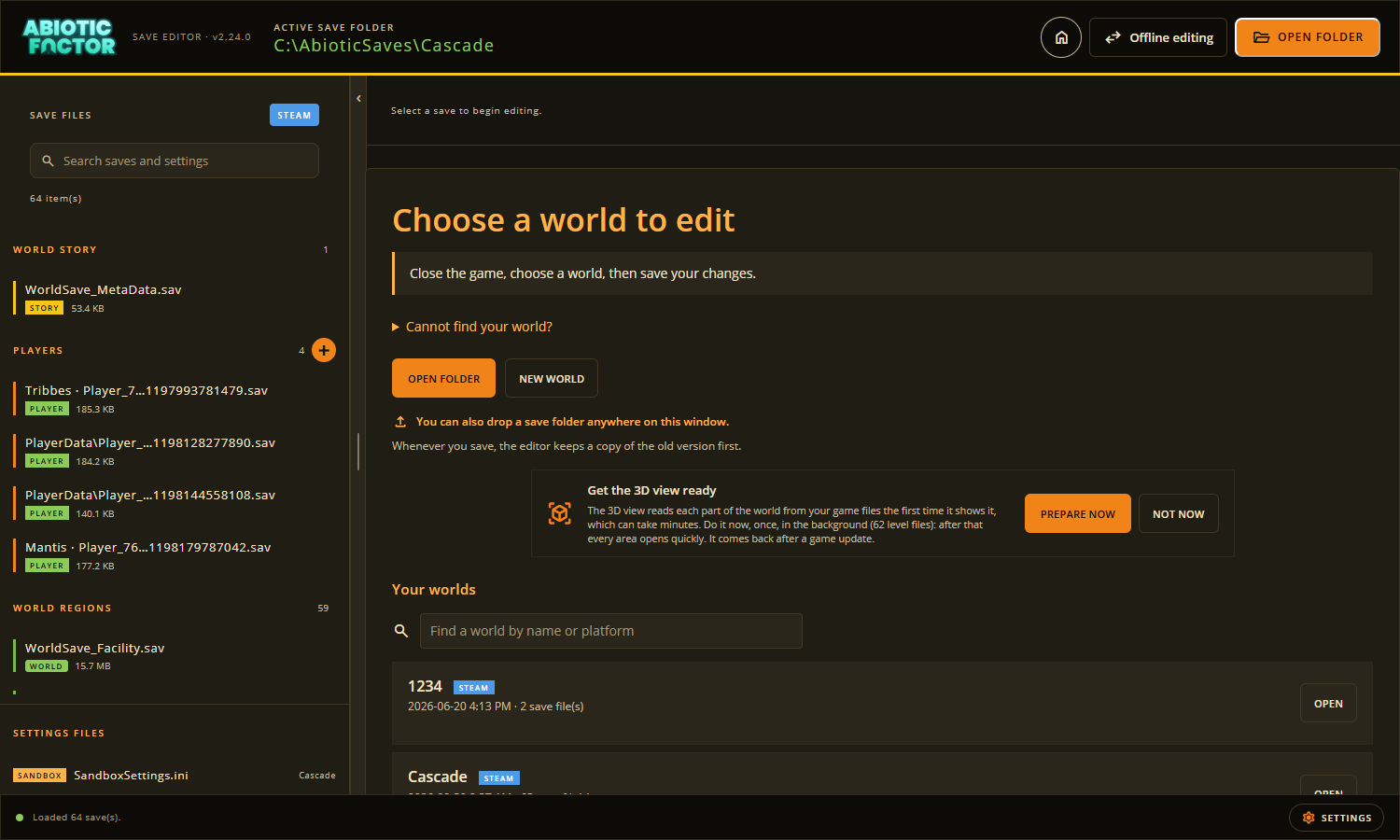
The start page offers to do it once, up front.
The start page shows a Get the 3D view ready card. Choose Prepare now and the editor reads every part of the world in the background. You can keep editing while it works. After that every area opens quickly. The card comes back after a game update, because the game's files have changed.
Opening a save also starts reading that area and the level around your bases in the background. By the time you open the 3D view, most of it is usually ready.
The map
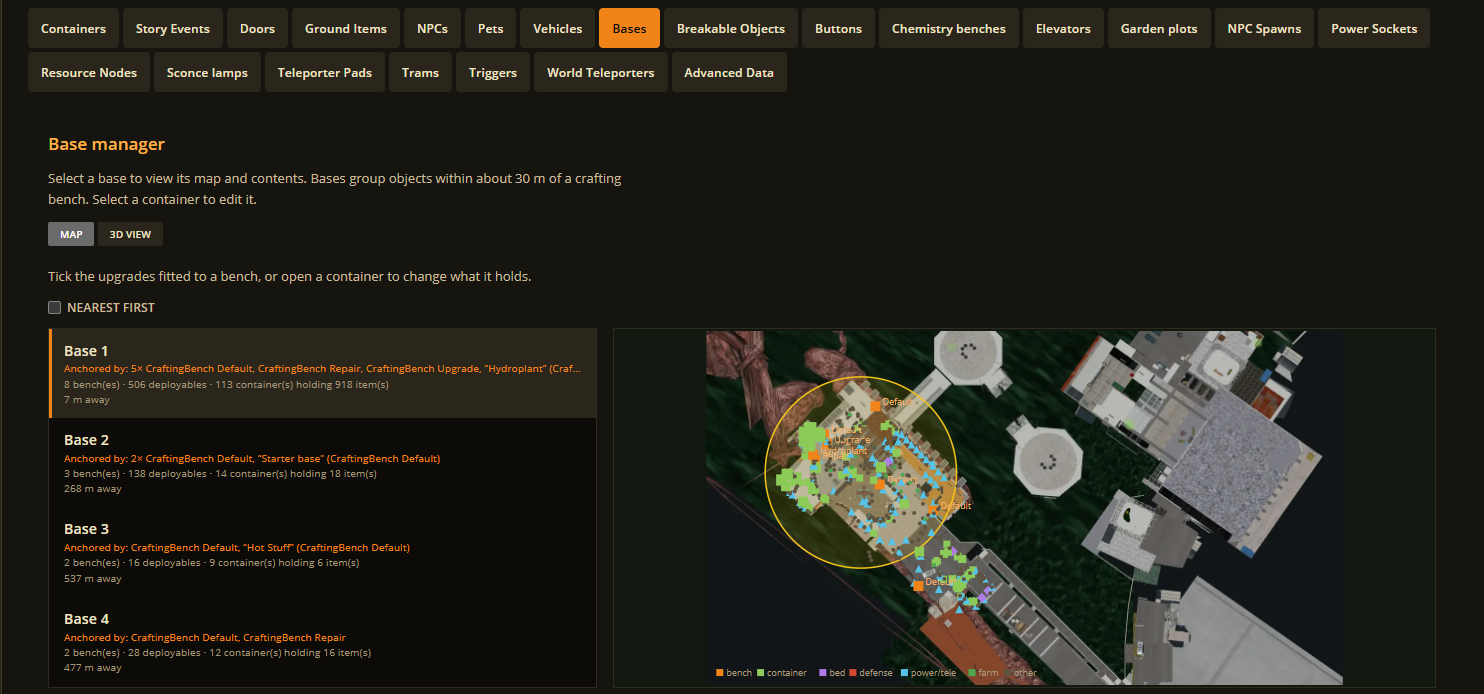
The Map shows your bases on a picture of the level seen from straight above, drawn from your game files. Pick a base and the map zooms to it.
Moving around
| Do this | To |
|---|---|
| Drag | Turn around the spot in the middle |
| Right-drag | Slide the view |
| Scroll | Zoom towards the pointer |
| Double-click | Move in on that spot |
| W A S D or the arrow keys | Move across the area (with the pointer over the view) |
| Q and E | Go down and up |
| Shift | Move faster |
The ? button lists the controls. Full screen gives the view the whole window; press Escape or the button again to leave.
Press Walk to look around at eye height. Click the view to look with the mouse, walk with W A S D, and press Escape to stop. You bump into walls. Turn off Stay on the floor to fly through them. E and Q take you up and down; let go and you land on the floor below, so you can reach another storey.
Leaving the 3D view and coming back keeps it exactly as you left it.
The Show menu
Show holds everything about what is drawn: labels and markers, filters, the game models and the level around your base. The level is on by default. It loads a part at a time and follows the view as you move. Ceilings are cut away so you can see inside. A box in the corner shows what is still loading.
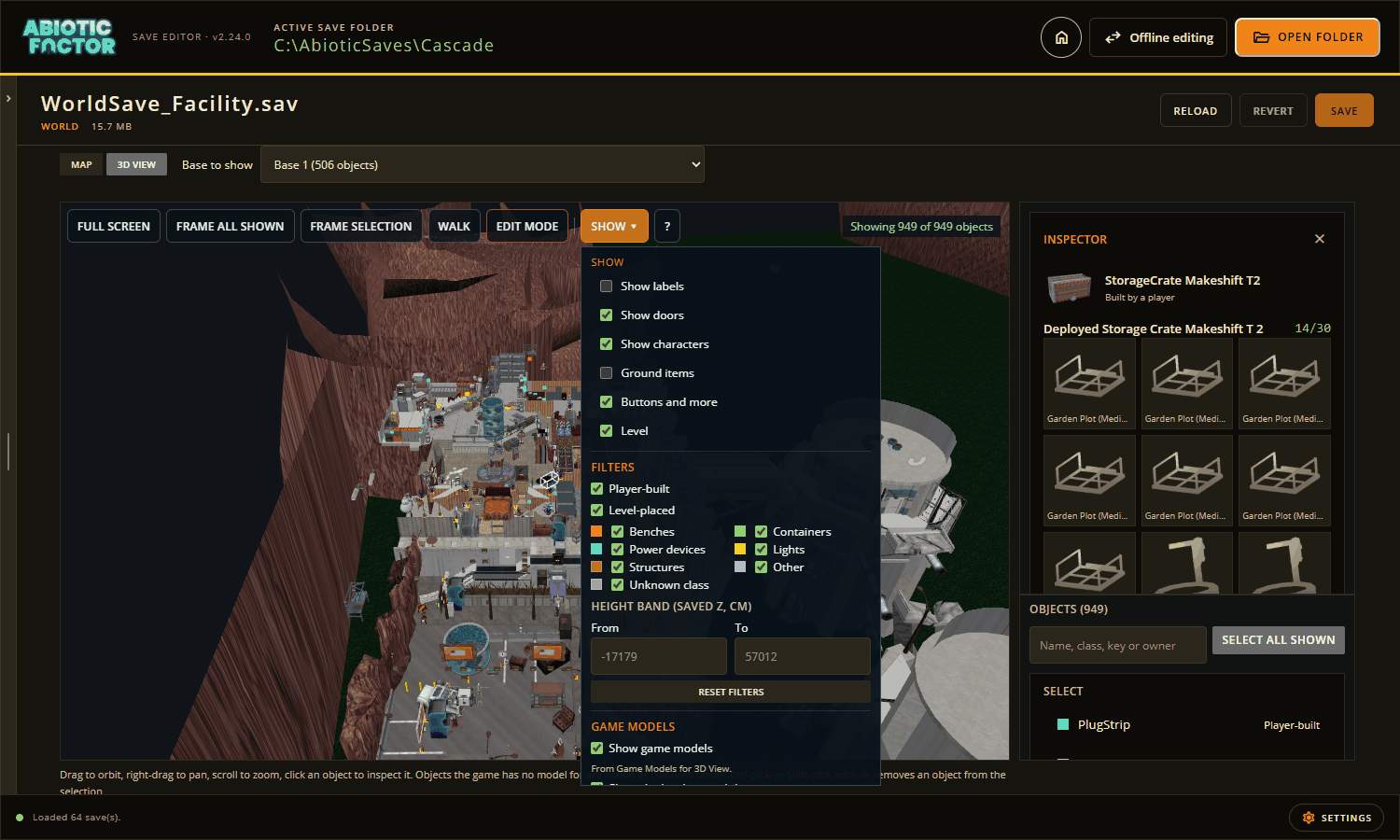
Markers show things you can click:
- Round markers are doors. Green is open, grey is closed, blue is a closed security door, and orange is destroyed or smashed.
- Diamonds are characters: violet for story characters and traders, dark red for ones the story has removed, and cyan for pets.
- Triangles are items lying on the ground.
- Squares are buttons, breakable walls, resource nodes, spawn points and the like.
Clicking things
Whatever the pointer is over gets a thin blue outline, so you can see what a click will pick. The panel beside the view shows what you clicked at the top, with the list of objects (and a search) underneath.
The card shows a picture and name, and whether it was Built by a player or Came with the level. Then come its contents (change them right there), Remove and Copy. The exact numbers are folded under Details.
Some cards have more:
- Benches list their upgrades to tick on or off. A painted piece has a colour to pick.
- A containment cell shows the creature inside, with a picker to put another one in and Release to empty it. This is saved to the story save along with this one when you press SAVE.
- A door can be opened or closed (either way round for a swinging door).
- A character shows their portrait and story. A trader also shows what they take and what they sell.
- A wall socket or any powered piece has a POWER card: plug a device in, or pick its outlet. Tick Route the cable through cable reroutes before you press PLUG to run the cable the way the game does, with a reroute every 4 m or on points you add.
- A button, breakable wall, resource node and other level things open the same settings as their list tab.
Changing your base
Turn on Edit mode first. Then:
- Drag any piece you built to move it. A selected group moves together. It moves in 10 cm steps; hold Shift to move freely, or Alt to raise or lower it.
- R turns the selection 45 degrees (Shift+R for 15).
- Delete removes it. You see what goes first.
- Ctrl+D copies it beside itself.
Add object opens a searchable set of pictures of the things you can place. Drag one onto the view to put it there, or click it to place it where the view is looking. Tick Also list things built in my other worlds to place a kind this world has never had.
Things that came with the level (a fridge, a locker, the walls) cannot be moved or removed: the game puts them back from its own files. Copy as my own piece places one of your own beside it instead.
The view checks every piece you move, copy or place. It warns when one cuts into a wall or floor, overlaps another piece, or floats with nothing holding it up. Stand it on the floor drops it onto the floor below.
Changes on the view lists everything waiting for SAVE. Nothing is written until you press it, and the editor keeps a .bak copy as always.
Show in 3D from any list
Most world tabs have a Show in 3D button next to what you pick: a door, a container, a chemistry bench, an item on the ground, a vehicle, a character, a pet, a button, a breakable wall, a resource node and the other lists of world objects. It opens the 3D view and takes you there. A piece you built is selected. A door or a character has its marker picked. Anything else gets an orange pin that shows through walls.
It works from the story save too. A trader has one button for each place they stand, and each containment cell and hologram has one. The editor opens the right area's save first. The view stays covered until the place has loaded, so it never shows half-drawn.
Pictures in the world lists
The Doors, Buttons, Breakable Objects, Elevators, Trams, World Teleporters, Resource Nodes, Power Sockets and Containers lists show a picture of each kind of thing, with its current state on it, and a small picture of where it stands. NPC spawn points show the creature they spawn. These pictures come with the editor.
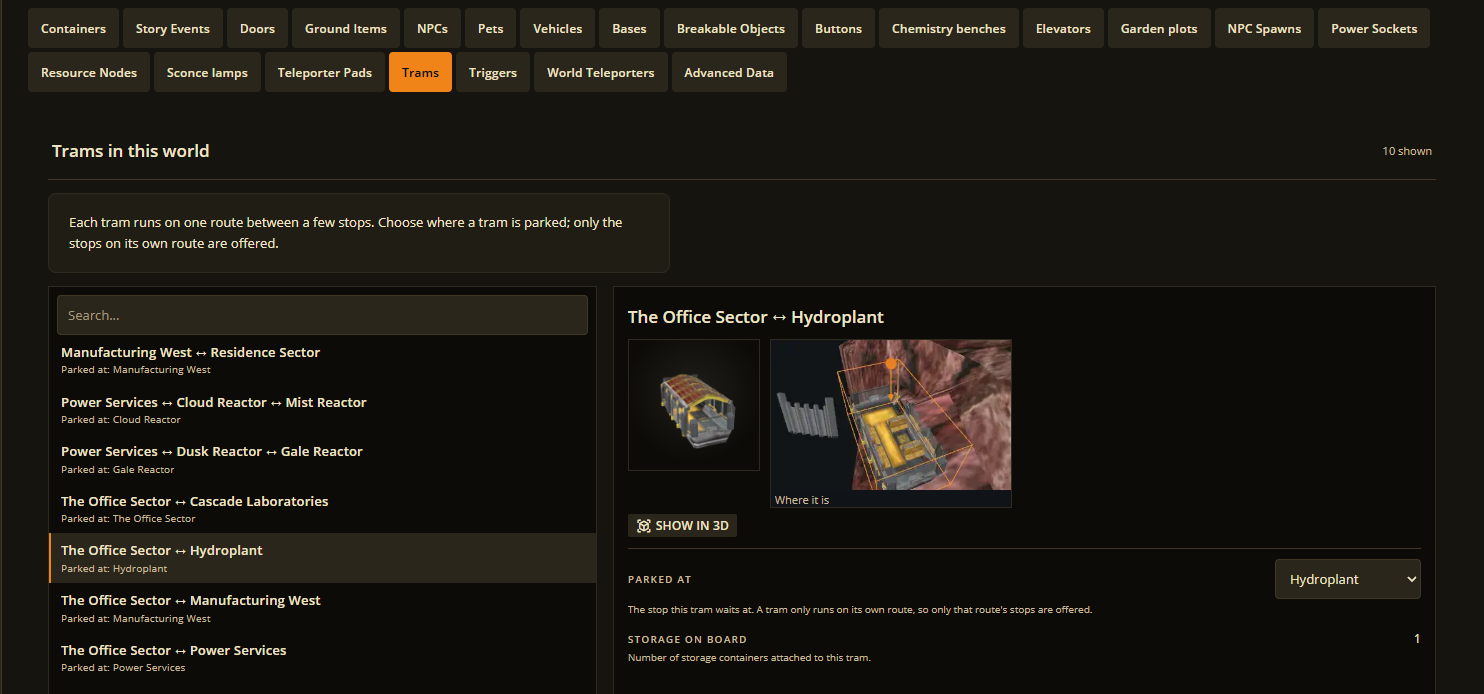
Click any "where it is" picture to see it large. Scroll to zoom in, drag to move around, and press Escape to close it.