
Transfer items between saves
Found a stash that belongs in another expedition? The desktop editor can move one item from a container in one world save to a container in another. It works for two regions in the same world or for two separate playthroughs. This station is not available in the browser editor.
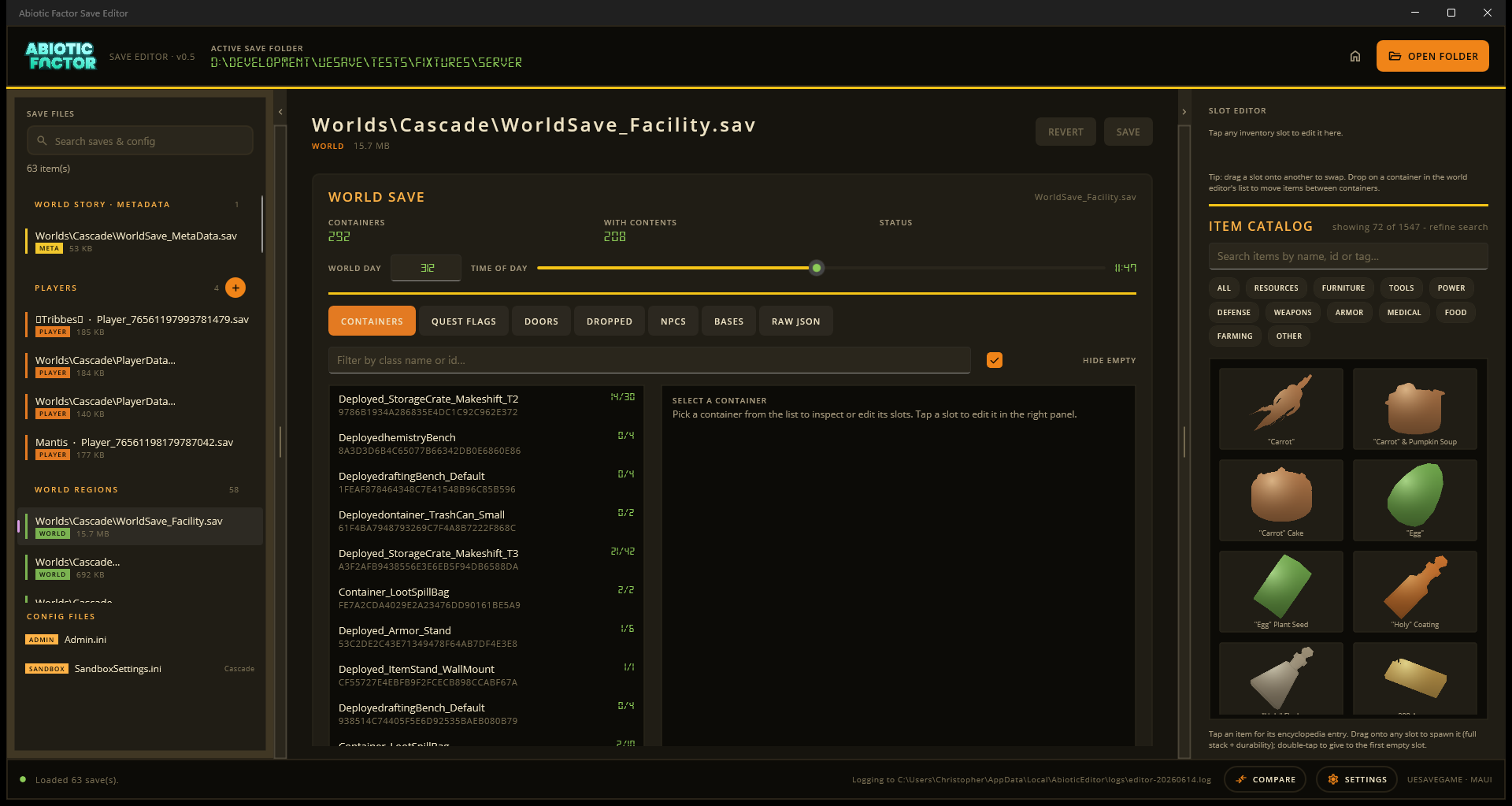
Start in Containers. The transfer link is below the list.
Before you move anything
Close the game or stop the server for both worlds. Make a separate copy of each world folder. A transfer changes two saves, so both need to reach the finish line.
Move the item
- In the desktop app, open a world save and go to Containers.
- Choose Move items to a different world save.
- Load a
WorldSave_<Region>.savon side A and the destination save on side B. - Pick the source and destination containers.
- Select the filled slot on side A, then an empty slot on side B. The item now appears as a staged move on both sides.
- Choose SAVE for side A and SAVE for side B.
Each side keeps its own .bak copy when saved. Do not play either world until both sides have saved successfully. Saving just one side leaves a duplicate or a missing item, depending on which side you saved.
Finish the transfer before changing files
The transfer window keeps its own working copies. Loading another save or closing it can discard unsaved work on that side. If a save reports an error, leave the transfer open, fix the problem, and save that side before continuing.
After a successful transfer, reload either save in the main editor before editing it again. Avoid editing the same file in the main editor and the transfer window at the same time.
Posters, helmets, and other appearances
Some items remember an appearance, such as poster artwork or a helmet colour. The editor carries that saved appearance across with the item. It will not guess an appearance for an item that did not already have one.
In the slot editor you can also choose the look of items that come in several versions: hats, coats, backpacks, posters, wall paintings, desk photo frames, televisions, and the coloured office chairs, couches, stools, fridges, cafeteria furniture, beds and cots.
For regular container editing, see the desktop app tour.