
Moving a base
You can pick up a whole base and set it down somewhere else. That includes everything stored in its crates and benches.
- Move it to another part of the Facility.
- Move it to another area of the same world, such as a portal world.
- Move it to another world saved on this computer.
- Save it to a base file to keep or share, and bring a base file back in later.
Only pieces you built move. Things that came with the level stay where they are.
Before you start
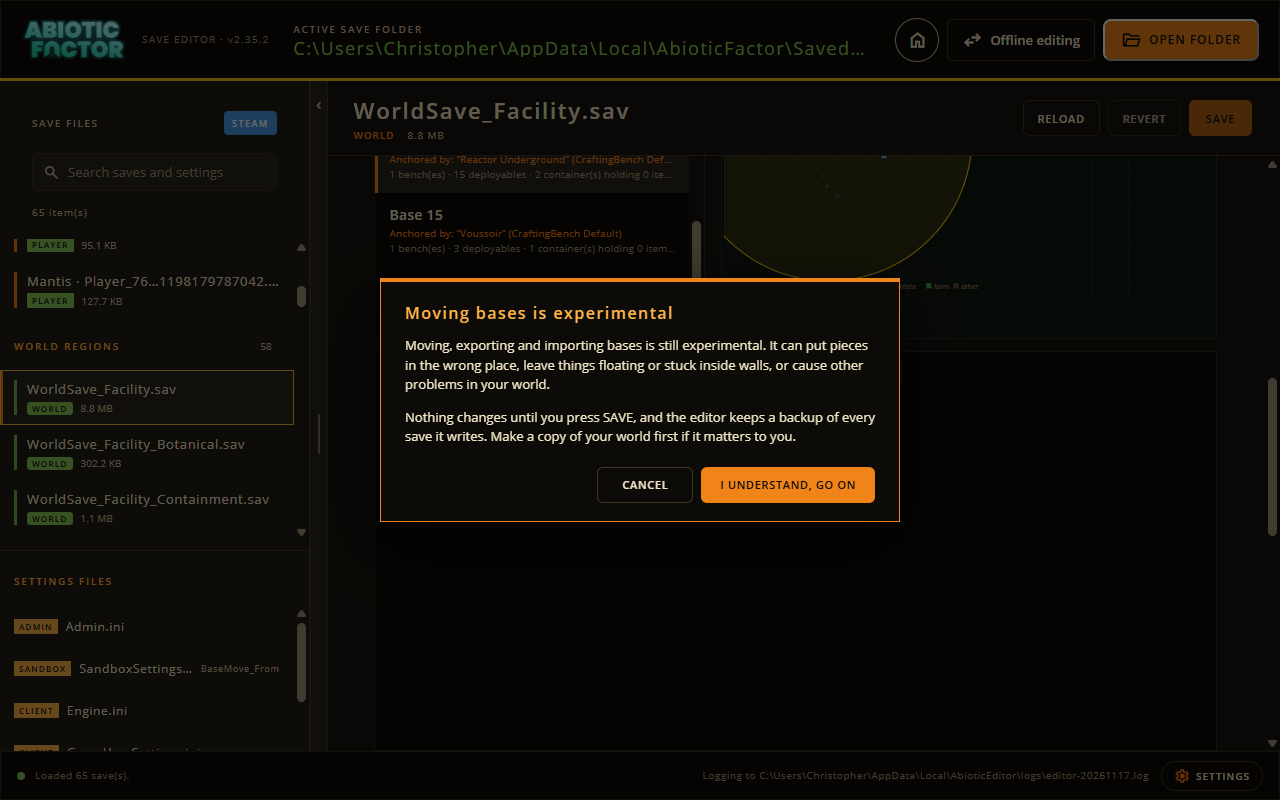
Moving bases is experimental
Before Move, Export or Import opens, the editor shows a warning. A base move can:
- put pieces in the wrong place
- leave things floating, or stuck in a wall
- cause other problems in the world
Press CANCEL if you are not ready. Press I UNDERSTAND, GO ON to continue.
- Make a copy of any world that matters to you before you start. Copy the save folder somewhere safe.
- Offline, nothing changes until you press SAVE. Every save keeps a
.bakbackup of the old version. - Both worlds must be saved by the same version of the game. If one was last played before game update 1.5, load it in the game once first. The game offers to upgrade it.
Move a base, step by step
Pick the base. On the Map, open the Bases tab and click a base in the list. Use the three buttons below it to start.
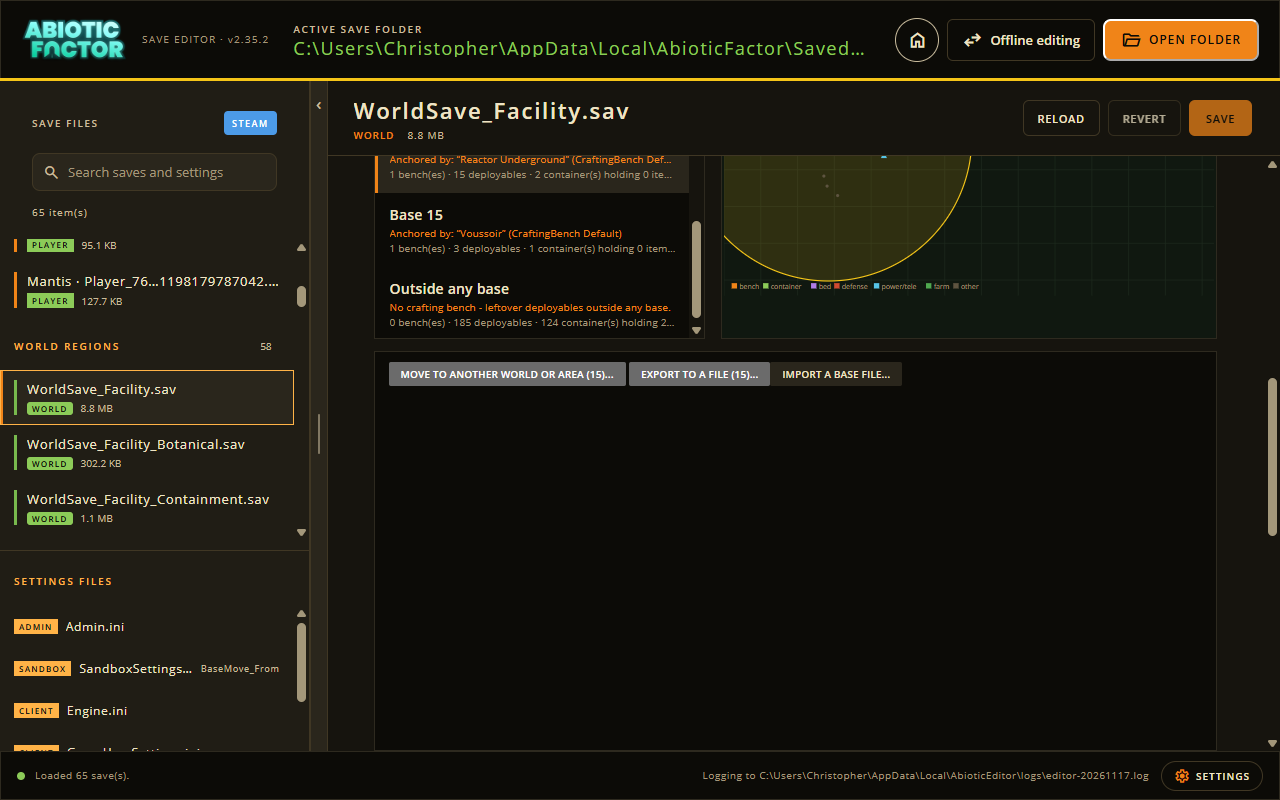
Press MOVE TO ANOTHER WORLD OR AREA, EXPORT TO A FILE or IMPORT A BASE FILE.
Accept the warning. Read it, then press I UNDERSTAND, GO ON.
Choose where it should go. Under the heading Where should it go?, pick one card:
- Another area of this world: a portal world, for example.
- Another world: a different world saved on this computer.
While the game is running (live editing), a third card, Somewhere else in this world, is there too.
For Another world:
- Pick the world from the list. The worlds you played last are at the top.
- Or type part of its name in the Find a world by name box.
- Then pick which part of that world you want. The Facility is first, as the main map.
- A world with only one area is chosen in one click.
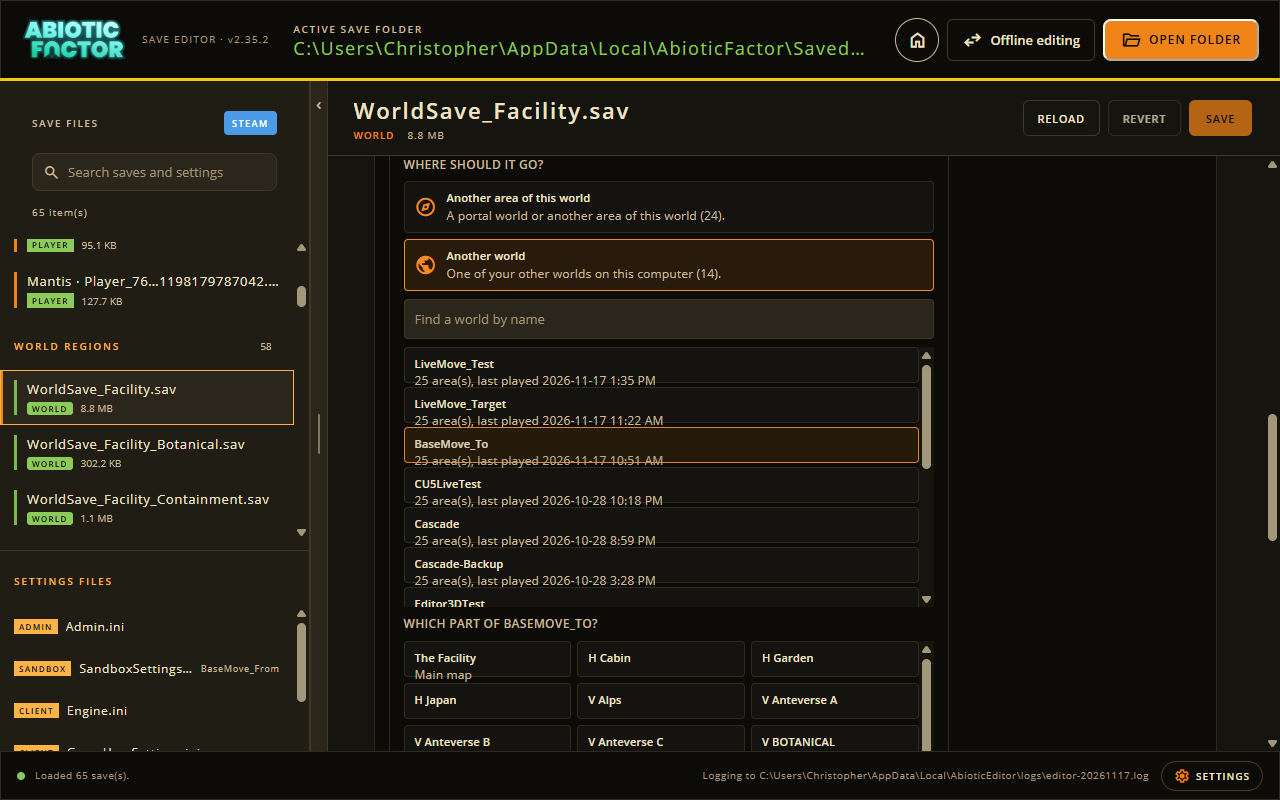
Each world shows how many areas it has and when you last played it.
Pick where the 3D view starts. The line Going to shows your choice. Press CHANGE if you want a different world.
Then pick a starting point in the Start near list:
- The same spot the base is on now.
- A sector of the Facility, such as the Office Sector, Manufacturing West, the Hydroplant, the Mines or the Reactors.
- Next to one of your bases in that world.
- The middle of a portal world.
Then choose whether the pieces leave this world:
- Remove them from this world (a move, not a copy): ticked, the pieces leave the old world. Unticked, you make a copy.
- Remove them anyway, and let those links point at nothing: this only appears when something elsewhere still points at the pieces (see Good to know below).
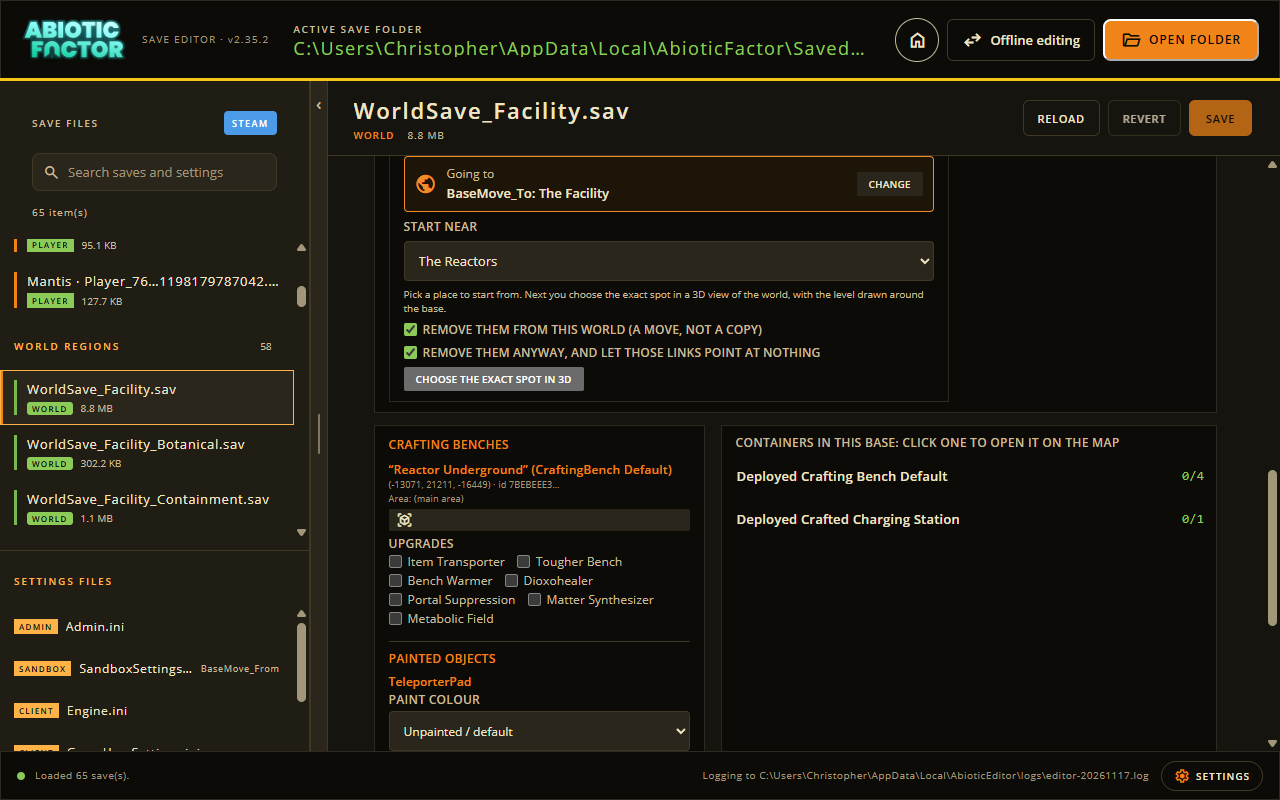
Press CHOOSE THE EXACT SPOT IN 3D when you are happy with these choices.
Choose the exact spot in 3D. The destination world opens and fills the whole window. It is drawn from the game's own files, with what is already built there. Your base is outlined in orange.
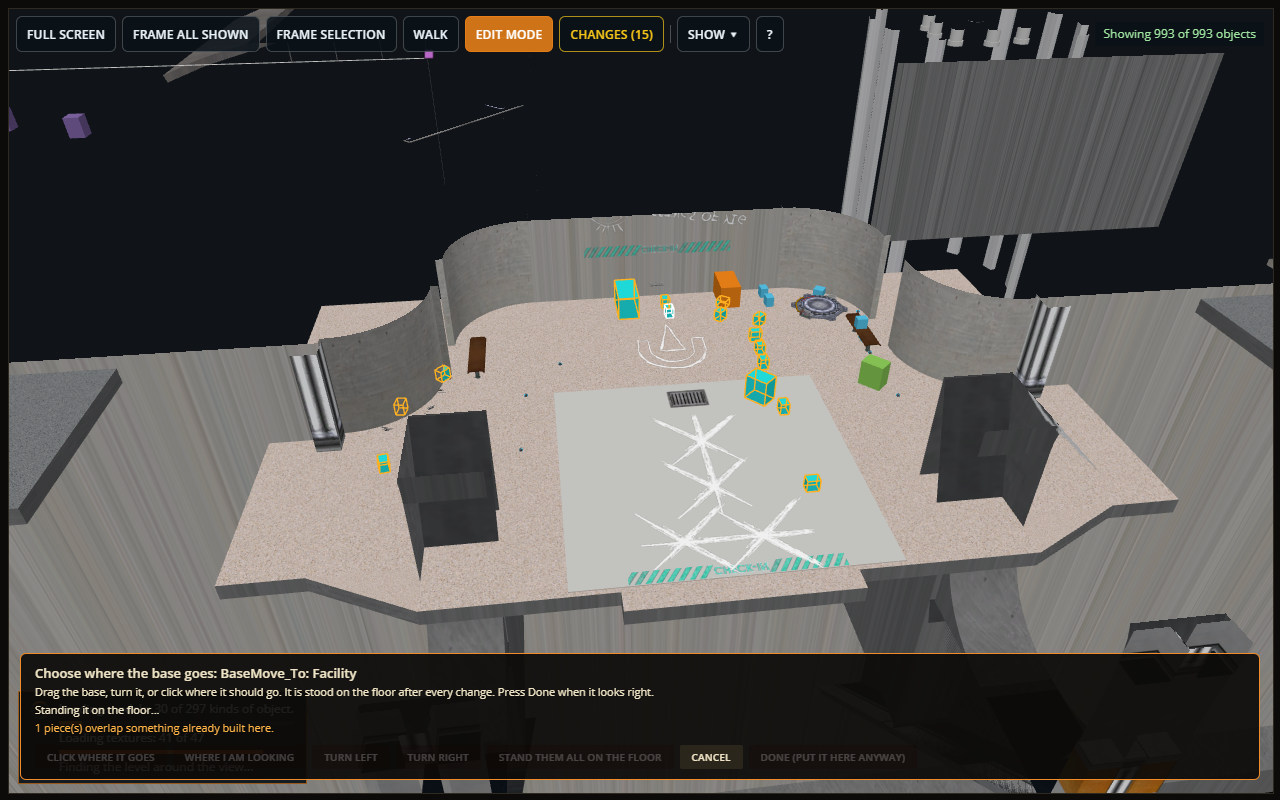
Move the base in one of these ways:
- Drag the base to a new place.
- Press TURN LEFT or TURN RIGHT to turn it.
- Press CLICK WHERE IT GOES, then click a floor. The base moves there.
- Press WHERE I AM LOOKING to put the base in the middle of your view.
- Press STAND THEM ALL ON THE FLOOR to drop the whole base onto the floor.
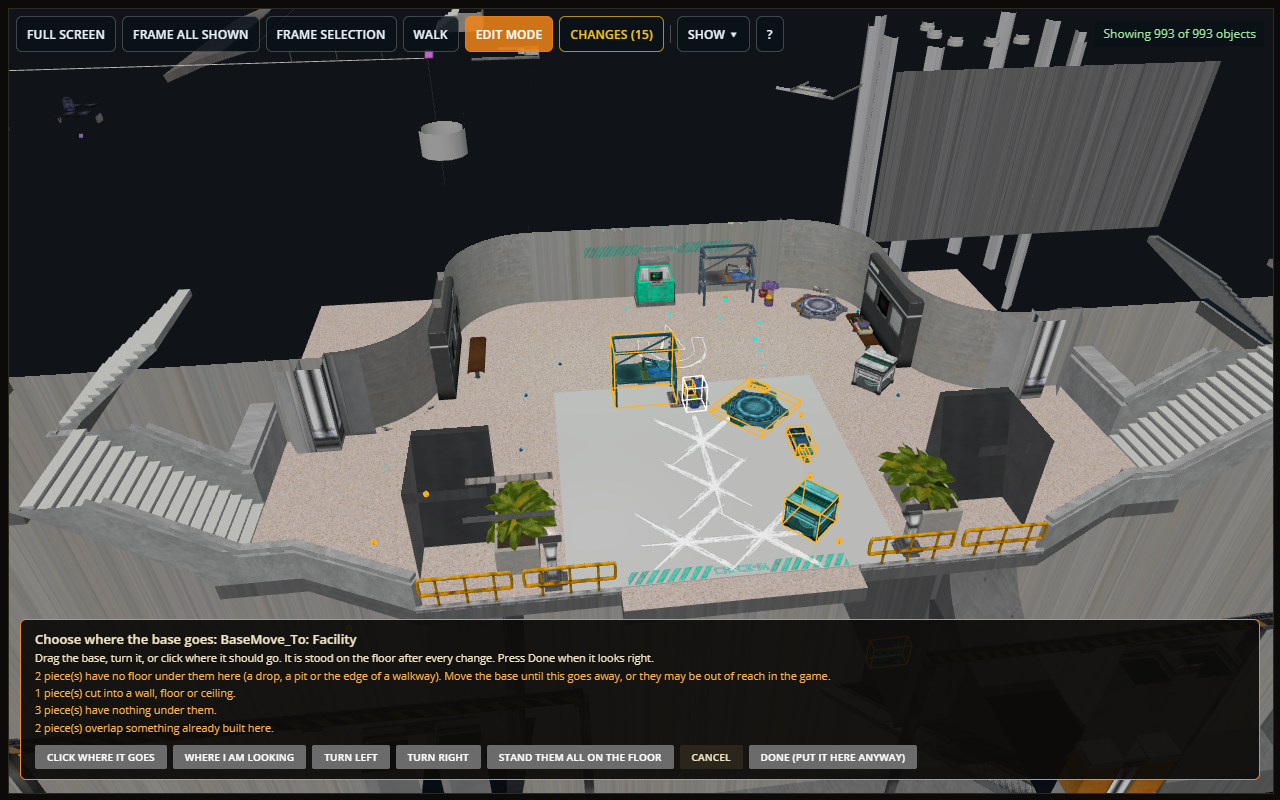
Keep an eye on the bar at the bottom. It tells you if anything is wrong. See Reading the warnings below.
Press DONE. The view closes and you return to the panel.
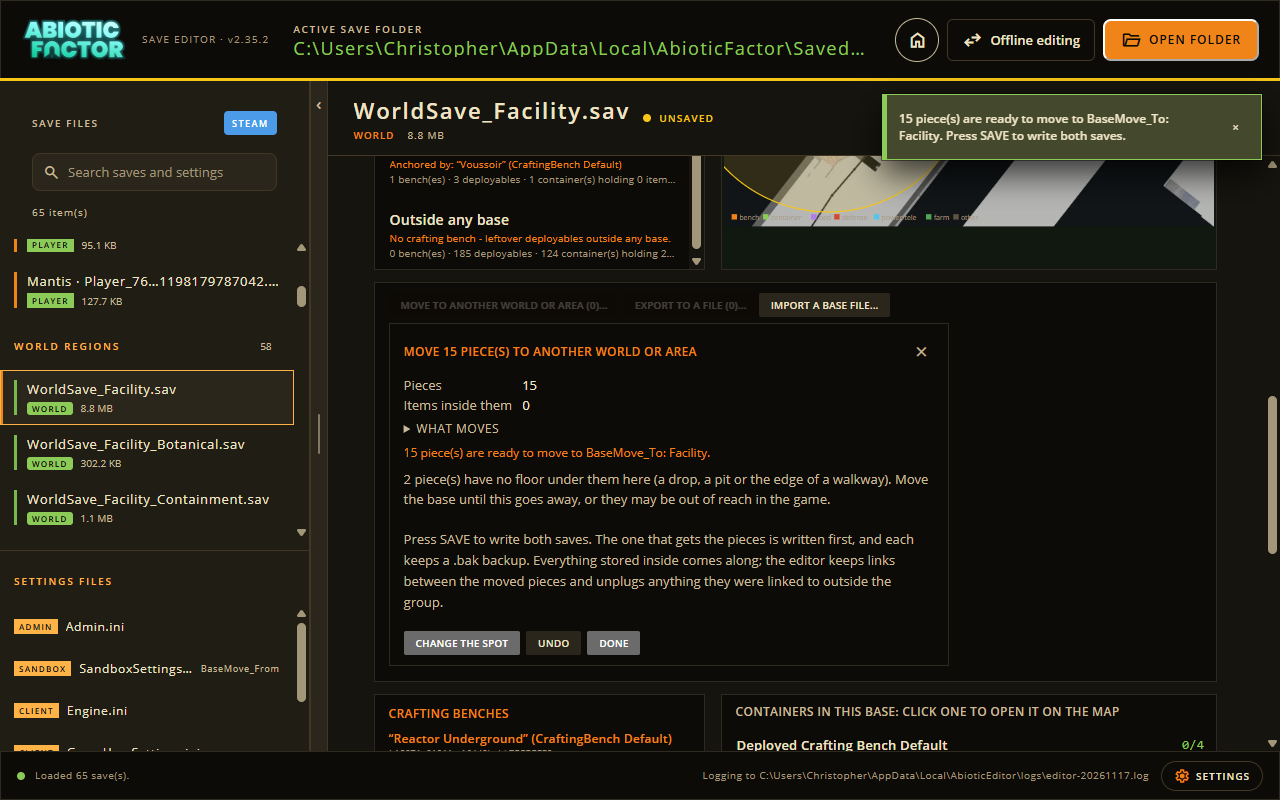
The panel says how many pieces are ready to move. Press CHANGE THE SPOT, UNDO or DONE.
Press SAVE. The editor writes both saves at once:
- The world that gets the pieces is written first.
- The world the pieces leave is written second.
- Each one keeps a
.bakbackup.
Choosing what moves
- On the Map, click a base in the list. The whole base is selected.
- In the 3D view, click a piece to select it. Hold Ctrl or Shift and click to add more pieces.
- Or pick a base under Base to show and press Select the whole base.
If the map grouped pieces from floors far apart into one base, only the floor with the base's benches moves. The panel says how many pieces stay behind.
Reading the warnings
The bar at the bottom of the 3D view warns you about these problems:
- Pieces with no floor under them. This happens at a drop, a pit or the edge of a walkway. The editor keeps these pieces level with the rest of the base. It never puts them at the bottom of the drop. In the game they may still fall or be out of reach, so move the base until the warning goes away.
- Pieces that cut into a wall, floor or ceiling.
- Pieces with nothing under them.
- Pieces that overlap something already built there.
Move or turn the base until the warnings go away. When everything fits, the bar says Everything stands on the floor here. The button then reads DONE.
If a warning stays, you can still press DONE (PUT IT HERE ANYWAY). The panel then keeps the warning, so you can press CHANGE THE SPOT later.
The level has not loaded yet?
If the floor looks wrong because the level is still loading, wait a moment. Then press STAND THEM ALL ON THE FLOOR.
How a base sits on the floor
- The base is stood on the floor that most of its pieces stand on.
- Each piece keeps its height above that floor. A lamp on a wall stays on the wall. A lamp on a table stays on the table.
After you press DONE
- DONE keeps the new spot.
- CANCEL in the 3D view, the first time you open it, takes the move back.
- CHANGE THE SPOT opens the 3D view again, so you can adjust it.
- UNDO takes the move back.
- Nothing is written until you press SAVE.
Export and import base files
A base file keeps your pieces safe outside the world. Use it to move a base between computers, or to share it with someone else.
To export a base:
- Pick the base on the Map.
- Press EXPORT TO A FILE.
- Tick Also remove them from this world if you want a move. Leave it unticked to keep the base in the world.
- Press EXPORT. The file is saved to your Downloads folder, or as a browser download.
- If you ticked the box, press SAVE to take the base out of the world.
- Keep the file until the pieces are safely in their new place.
To import a base:
- On the Map, press IMPORT A BASE FILE. You can also do this in the 3D view, in Edit mode.
- Press CHOOSE A BASE FILE.... Or, under Bring a base here, take a base straight from another world or area on this computer. That uses the same picker as a move, titled Where is the base now?, then a list of the bases there.
- Pick where the base should start in the Start near list.
- Press PUT IT DOWN HERE (for a file) or BRING IT HERE (from another world).
- From the Map, the 3D view opens so you can choose the exact spot, as for a move. Press DONE there. In the 3D view, the new pieces are drawn in light blue: drag them, or press R to turn them, until they sit right.
- Press SAVE.
Moving a base while you play
If you run the editor live, the same tools appear on the Bases tab and in the live 3D view. See the live editing guide to set it up.
- You choose the spot in the 3D view first. Nothing changes in the game until you press the button that moves the base.
- Changes happen at once. There is no SAVE step, no
.bakbackup and no undo. - The editor asks the game to save before and after the move. Save your own backup first.
- Anything stored inside the base comes along.
- Power cables between the moved pieces are plugged back in.
Good to know
- Power cables. Cables between the moved pieces are kept. Cables to anything left behind are unplugged.
- Teleporter pads. Pads that were paired with each other stay paired in the new place. Each gets a pairing of its own.
- Links to the old spot. If something elsewhere still points at the moved pieces (a power socket in another area, for example), the editor warns you before it saves. You can then tick Remove them anyway, and let those links point at nothing.
- Beds. A claimed bed arrives unclaimed. Claim it again in the game.
- Floors far apart. Only the floor with the benches moves. Check the panel for the pieces that stay.
- A new portal world. If you have never built in that world, the pieces go into its own level. Look over the new base in the game after you save.